
How To Highlight Weekends In Excel Calendar
How To Highlight Weekends In Excel Calendar - There are a lot of affordable templates out there, but it can be easy to feel like a lot of the best cost a amount of money, require best special design template. Making the best template format choice is way to your template success. And if at this time you are looking for information and ideas regarding the How To Highlight Weekends In Excel Calendar then, you are in the perfect place. Get this How To Highlight Weekends In Excel Calendar for free here. We hope this post How To Highlight Weekends In Excel Calendar inspired you and help you what you are looking for.
Highlighting Weekends in an Excel Calendar
Creating a visually appealing and functional calendar in Excel often involves highlighting weekends. This simple yet effective technique improves readability and helps users quickly identify days off, making it easier to plan schedules and manage time. This guide provides a comprehensive walkthrough of various methods to highlight weekends in an Excel calendar, catering to different skill levels and calendar setups.
Method 1: Conditional Formatting with a Formula
This is the most common and versatile method, allowing dynamic updates as the calendar dates change. It leverages Excel’s conditional formatting capabilities along with formulas to identify weekends.
- Select the Date Range: Begin by selecting the entire range of cells containing the dates of your calendar. Be sure to only select the date cells, not headers or labels. For example, if your calendar dates are in the range A2:G32, select that range.
- Access Conditional Formatting: Go to the “Home” tab on the Excel ribbon. In the “Styles” group, click on “Conditional Formatting.”
- Create a New Rule: From the dropdown menu, select “New Rule…” This opens the “New Formatting Rule” dialog box.
- Choose “Use a formula to determine which cells to format”: In the “Select a Rule Type” section, choose the option that says “Use a formula to determine which cells to format.”
- Enter the Formula: In the “Format values where this formula is true” box, enter the following formula:
=WEEKDAY(A2,2)>5
Explanation:WEEKDAY(A2,2): This part of the formula calculates the day of the week for the date in cell A2 (the first cell in your selected range). The `2` argument specifies that the week starts on Monday (Monday=1, Tuesday=2, …, Sunday=7).>5: This checks if the result of theWEEKDAYfunction is greater than 5. Since Monday=1, Tuesday=2, …, Friday=5, Saturday=6, and Sunday=7, this effectively identifies Saturdays and Sundays (weekends).- Important: Adjust `A2` in the formula to match the first cell in your *selected range*. If you selected B3:H33, the formula should be `=WEEKDAY(B3,2)>5`.
- Set the Formatting: Click the “Format…” button. This opens the “Format Cells” dialog box. Choose the desired formatting for weekends. The most common choices are:
- Fill: Select a background color to highlight the weekends.
- Font: Change the font color, style (bold, italics), or size.
- Border: Add a border around weekend cells.
Click “OK” to close the “Format Cells” dialog box.
- Apply the Rule: Click “OK” in the “New Formatting Rule” dialog box to apply the rule.
Your weekends should now be highlighted in the calendar. As dates are updated, the highlighting will automatically adjust based on the formula.
Method 2: Using the WORKDAY.INTL Function (for Custom Weekends)
If your weekends are not standard Saturdays and Sundays, the `WORKDAY.INTL` function offers more flexibility. This function lets you define which days of the week are considered weekends.
- Select the Date Range: As before, select the range of cells containing your calendar dates.
- Access Conditional Formatting and Create a New Rule: Follow steps 2-4 from Method 1.
- Enter the Formula: In the “Format values where this formula is true” box, enter a formula using `WORKDAY.INTL`. A common approach is to check if adding zero workdays returns the same date when weekends are excluded. For example, if your weekends are Friday and Saturday, the formula would be:
=A2=WORKDAY.INTL(A2,-0,"1101111")
Explanation:A2: Represents the first cell in your selected range (adjust as needed).WORKDAY.INTL(A2,-0,"1101111"): This calculates the workday that is zero days before the date in A2, considering the specified weekend days.- The `-0` argument indicates that we want to find the workday that is zero days before the starting date.
- The `”1101111″` argument is a string of 7 digits, each representing a day of the week (starting from Monday). A “1” represents a weekend day, and a “0” represents a workday. In this example, “1101111” means Monday and Tuesday are weekends. You’ll need to adjust this string to match your desired weekends. For example, `”0000011″` indicates Saturday and Sunday are weekends, while `”1000001″` indicates Monday and Sunday are weekends.
- The `=A2=WORKDAY.INTL(A2,-0,”1101111″)` part of the formula compares the original date (A2) with the calculated workday. If they are the same, it means the original date was already a workday. If they are different, it means the original date was a weekend. Since we want to *highlight weekends*, we invert the logic: The formula should be `=NOT(A2=WORKDAY.INTL(A2,-0,”0000011″))` if you want to highlight Saturdays and Sundays, or `=NOT(A2=WORKDAY.INTL(A2,-0,”1111100″))` if you want to highlight Fridays and Saturdays. **The negation is important to correctly highlight the *weekend* days.**
- Set the Formatting: Click the “Format…” button and choose your desired formatting (fill color, font style, etc.).
- Apply the Rule: Click “OK” to apply the rule.
This method is useful when your weekends are not the standard Saturday and Sunday. Remember to adjust the `”1101111″` string and consider the negation (`NOT(…)`) to accurately define your weekend days.
Method 3: VBA Macro (for Advanced Customization)
For more complex scenarios or when you need highly customized weekend highlighting logic, a VBA macro provides the greatest flexibility. This requires some familiarity with VBA programming.
- Open the VBA Editor: Press Alt + F11 to open the Visual Basic Editor (VBE).
- Insert a Module: In the VBE, go to Insert > Module.
- Write the VBA Code: Paste the following code into the module:
Sub HighlightWeekends() Dim ws As Worksheet Dim rng As Range Dim cell As Range Dim weekendDays As Variant Dim dayOfWeek As Integer 'Set the worksheet and range containing the dates Set ws = ThisWorkbook.Sheets("Sheet1") 'Change "Sheet1" to your sheet name Set rng = ws.Range("A2:G32") 'Change "A2:G32" to your date range 'Define weekend days (1=Sunday, 2=Monday, ..., 7=Saturday) weekendDays = Array(1, 7) 'Standard Saturday and Sunday 'Loop through each cell in the range For Each cell In rng 'Get the day of the week for the current cell dayOfWeek = Weekday(cell.Value) 'Check if the day is in the weekendDays array If IsInArray(dayOfWeek, weekendDays) Then 'Apply formatting to the weekend cell cell.Interior.Color = RGB(255, 204, 204) 'Light Red color End If Next cell End Sub 'Helper function to check if a value exists in an array Function IsInArray(searchValue As Variant, searchArray As Variant) As Boolean Dim i As Long IsInArray = False For i = LBound(searchArray) To UBound(searchArray) If searchArray(i) = searchValue Then IsInArray = True Exit For End If Next i End FunctionExplanation:
- The code iterates through each cell in the specified range.
- It uses the `Weekday` function to determine the day of the week (1=Sunday, 2=Monday, …, 7=Saturday).
- The `weekendDays` array defines which days are considered weekends. You can customize this array to include any day of the week (or multiple days). For example, `weekendDays = Array(6,7)` would highlight Friday and Saturday. `weekendDays = Array(1,2,3)` would highlight Sunday, Monday, and Tuesday.
- The `IsInArray` function checks if the day of the week is present in the `weekendDays` array.
- If the day is a weekend, the code changes the cell’s background color using `cell.Interior.Color`. You can modify this to apply any other formatting (font, border, etc.).
- Modify the Code (if needed):
- Change
"Sheet1"to the actual name of your worksheet. - Change
"A2:G32"to the correct range containing your calendar dates. - Adjust the
weekendDaysarray to define your specific weekend days (1=Sunday, 2=Monday, …, 7=Saturday). - Modify the
cell.Interior.Color = RGB(255, 204, 204)line to change the highlighting color or apply other formatting.
- Change
- Run the Macro: In the VBE, go to Run > Run Sub/UserForm (or press F5).
The VBA macro will highlight the weekends based on your specified settings. This method provides the most control over the highlighting process.
By mastering these methods, you can effectively highlight weekends in your Excel calendar, enhancing its clarity and making it easier to plan and manage your time.
 397×380 highlight rows weekend days excel from extendoffice.com
 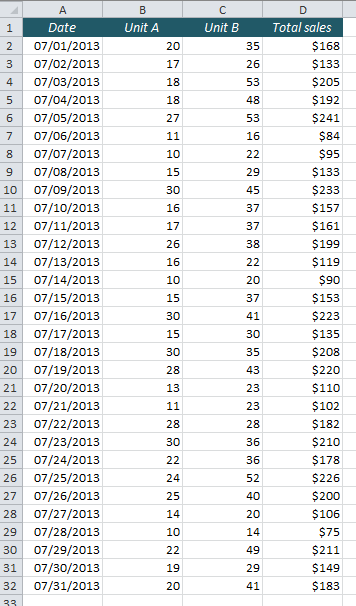 356×606 highlight weekends excel conditional formatting easy excelcom from easy-excel.com
 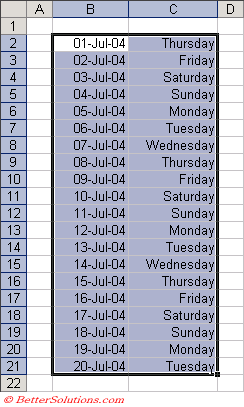 244×407 excel conditional formatting weekends from bettersolutions.com
  767×315 highlight weekends holidays conditional formatting excel from wmfexcel.com
 How To Highlight Weekends In Excel Calendar was posted in January 25, 2026 at 9:56 am. If you wanna have it as yours, please click the Pictures and you will go to click right mouse then Save Image As and Click Save and download the How To Highlight Weekends In Excel Calendar Picture.. Don’t forget to share this picture with others via Facebook, Twitter, Pinterest or other social medias! we do hope you'll get inspired by ExcelKayra... Thanks again! If you have any DMCA issues on this post, please contact us!