
How To Use The Offset Function In Excel With Examples
How To Use The Offset Function In Excel With Examples - There are a lot of affordable templates out there, but it can be easy to feel like a lot of the best cost a amount of money, require best special design template. Making the best template format choice is way to your template success. And if at this time you are looking for information and ideas regarding the How To Use The Offset Function In Excel With Examples then, you are in the perfect place. Get this How To Use The Offset Function In Excel With Examples for free here. We hope this post How To Use The Offset Function In Excel With Examples inspired you and help you what you are looking for.
The OFFSET function in Excel is a powerful and versatile tool that allows you to return a range of cells that is a specified number of rows and columns from a starting reference. Think of it as a dynamic cell pointer that you can move around your spreadsheet. It’s especially useful for creating dynamic charts, formulas, and named ranges that automatically adjust to changing data. While seemingly simple, mastering the OFFSET function opens up a wide array of possibilities for advanced Excel usage.
Understanding the Syntax
The OFFSET function has the following syntax:
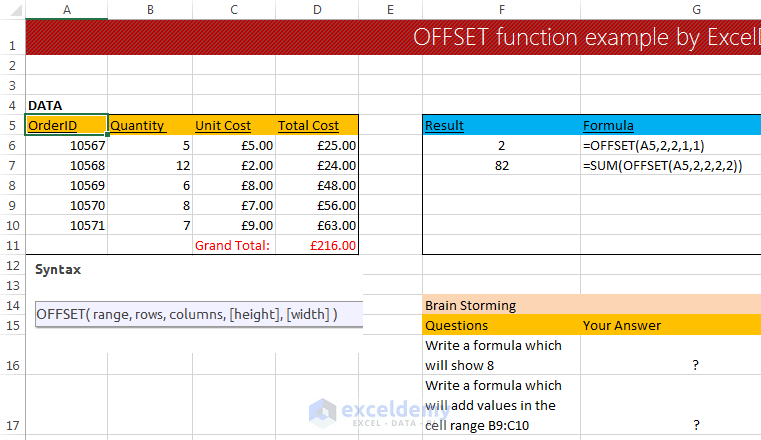
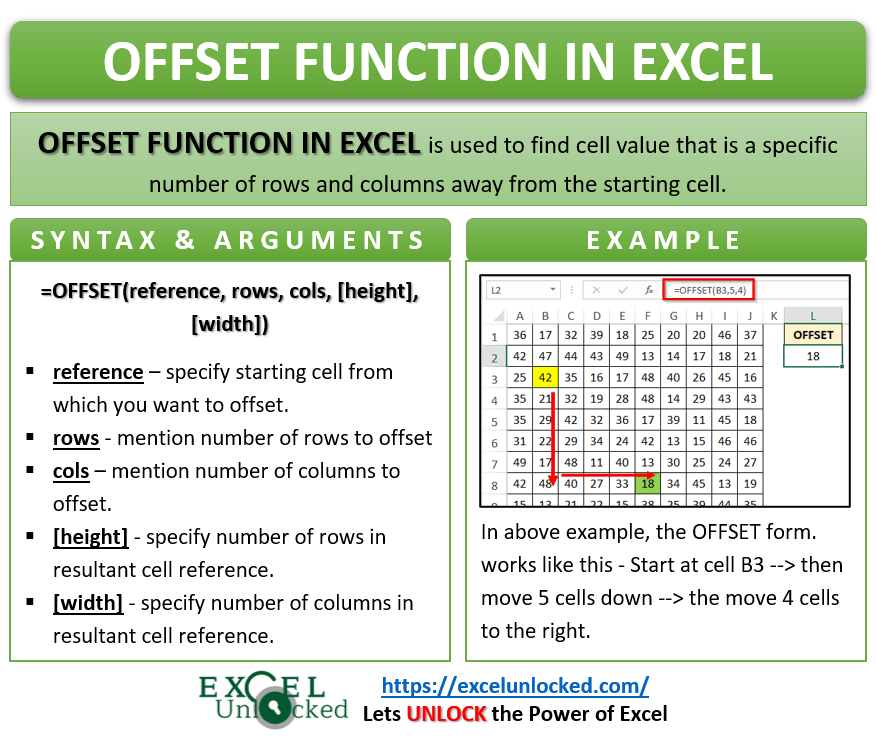
=OFFSET(reference, rows, cols, [height], [width])
Let’s break down each argument:
- reference: This is the starting cell or range from which you want to offset. It’s the anchor point for the function. This must be a cell or a range of cells, and it’s crucial to choose the right reference to get the desired result.
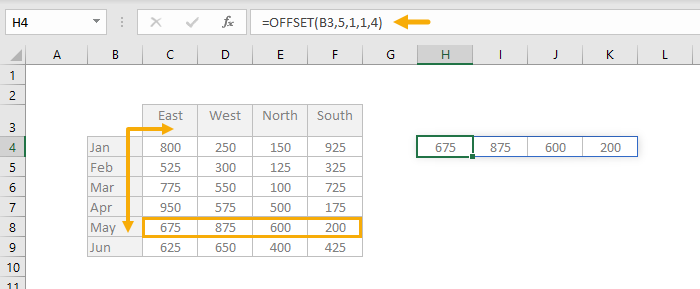
- rows: The number of rows to offset from the reference. A positive number moves down, a negative number moves up, and zero means no row offset.
- cols: The number of columns to offset from the reference. A positive number moves right, a negative number moves left, and zero means no column offset.
- [height]: (Optional) The height of the returned range, in number of rows. If omitted, it defaults to the height of the reference. If your reference is a single cell, the default height is 1.
- [width]: (Optional) The width of the returned range, in number of columns. If omitted, it defaults to the width of the reference. If your reference is a single cell, the default width is 1.
It’s important to note that OFFSET *returns a reference*, not a value. This means you typically use it in conjunction with other functions like SUM, AVERAGE, COUNT, or even other OFFSET functions to extract and manipulate the data it points to.
Basic Examples
Let’s start with some basic examples to illustrate how OFFSET works:
Assume the following data in your Excel sheet:
A B C D 1 10 20 30 40 2 50 60 70 80 3 90 100 110 120 4 130 140 150 160
=OFFSET(A1, 1, 1)This starts at cell A1, moves down 1 row, and right 1 column. The result is cell B2, which contains the value 60.=OFFSET(A1, 2, 0)This starts at cell A1, moves down 2 rows, and stays in the same column (0 columns offset). The result is cell A3, which contains the value 90.=OFFSET(C2, -1, -2)This starts at cell C2, moves up 1 row, and left 2 columns. The result is cell A1, which contains the value 10.=OFFSET(A1, 0, 0, 3, 2)This starts at cell A1, does not move (0 rows, 0 columns), and returns a range that is 3 rows high and 2 columns wide. The result is the range A1:B3, containing the values 10, 20, 50, 60, 90, and 100. Notice that `OFFSET` by itself doesn’t *display* these values. You’d typically use it within another function to work with this range.
Using OFFSET with Other Functions
The real power of OFFSET comes when you combine it with other Excel functions. Here are some common use cases:
1. Summing a Dynamic Range
Suppose you want to sum the values in the first three rows of column B. You could use the following formula:
=SUM(OFFSET(B1, 0, 0, 3, 1))
This starts at B1, offsets by 0 rows and 0 columns (so it stays at B1), and then creates a range that is 3 rows high and 1 column wide (B1:B3). The SUM function then adds up the values in this range.
Now, imagine you want to sum the values in the *last* three rows of column B, assuming you don’t know how many rows of data you have. You can use the COUNTA function to determine the number of filled rows and then use that in your OFFSET formula:
=SUM(OFFSET(B1, COUNTA(B:B)-3, 0, 3, 1))
Here’s how this works:
COUNTA(B:B)counts the number of non-empty cells in column B, including headers. Let’s say there are 5 rows of data.COUNTA(B:B)-3calculates 5 – 3 = 2. This is the number of rows to offset *down* from B1 to reach the beginning of the last three rows (B3 in this case).OFFSET(B1, 2, 0, 3, 1)creates a range that starts at B3 and is 3 rows high and 1 column wide (B3:B5).SUMthen adds up the values in B3:B5.
2. Averaging a Moving Window
You can use OFFSET to calculate a moving average. For example, to calculate the average of the last 5 days of sales data, you could use a formula like this:
Assume sales data is in column C, starting from C2:
=AVERAGE(OFFSET(C2, COUNTA(C:C)-6, 0, 5, 1))
Similar to the previous example, COUNTA(C:C) counts the number of data entries in column C (including any header). We subtract 6 to move to the starting point for the average, use a height of 5 rows, and a width of 1 column. This effectively calculates the average of the previous 5 values.
3. Creating Dynamic Named Ranges
One of the most powerful uses of OFFSET is in creating dynamic named ranges. This allows you to define a name that refers to a range of cells that automatically adjusts as data is added or removed. Here’s how to do it:
- Go to the “Formulas” tab in Excel.
- Click on “Define Name”.
- In the “New Name” dialog box:
- Enter a name for your range (e.g., “MyData”).
- In the “Refers to” field, enter an
OFFSETformula.
- Click “OK”.
For example, let’s say you have a list of products in column A and their corresponding prices in column B. You want to create a dynamic named range called “Prices” that always includes all the prices, regardless of how many products are added to the list.
In the “Refers to” field, you would enter the following formula (assuming the prices start in cell B2):
=OFFSET(Sheet1!B2,0,0,COUNTA(Sheet1!B:B)-1,1)
This formula does the following:
Sheet1!B2is the starting reference point (the first price).0,0means no row or column offset.COUNTA(Sheet1!B:B)-1calculates the number of prices in column B (excluding the header). This becomes the height of the range. We subtract 1 becauseCOUNTAcounts the header in B1.1is the width of the range (1 column).
Now, you can use the named range “Prices” in other formulas. For example, to calculate the total value of all products, you could use:
=SUM(Prices)
The “Prices” range will automatically adjust as you add or remove products and their prices from columns A and B, respectively.
4. Extracting Data from a Table Dynamically
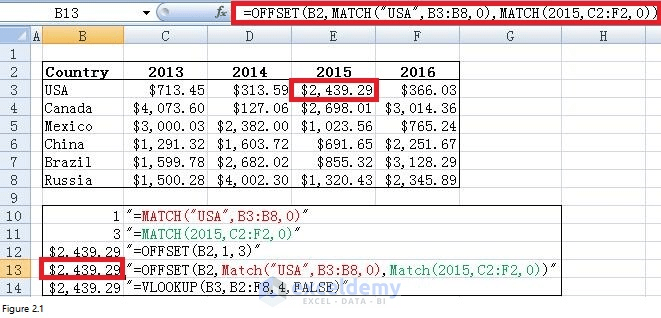
Imagine you have a table of sales data organized by month and product. You want to extract the sales figures for a specific product for the last six months. You can combine OFFSET with MATCH and INDEX to achieve this.
Let’s say the table looks like this:
A B C D E F G 1 Month Product1 Product2 Product3 Product4 Product5 Product6 2 Jan 100 150 200 250 300 350 3 Feb 110 160 210 260 310 360 4 Mar 120 170 220 270 320 370 5 Apr 130 180 230 280 330 380 6 May 140 190 240 290 340 390 7 Jun 150 200 250 300 350 400 8 Jul 160 210 260 310 360 410 9 Aug 170 220 270 320 370 420 10 Sep 180 230 280 330 380 430 11 Oct 190 240 290 340 390 440 12 Nov 200 250 300 350 400 450 13 Dec 210 260 310 360 410 460
Assume the product name you want to extract data for is in cell I1 (e.g., “Product3”). You want to get the last 6 months of sales data for that product. Here’s the formula:
=OFFSET(B1, COUNTA(A:A)-7, MATCH(I1,B1:G1,0)-1, 6, 1)
Let’s break it down:
B1is the starting reference (the first data cell).COUNTA(A:A)-7calculates the number of rows to offset down.COUNTA(A:A)counts the number of months (including the header “Month”). Subtracting 7 gets you the starting row for the last 6 months (13 – 7 = 6, meaning start at row 6 relative to B1).MATCH(I1,B1:G1,0)-1finds the column corresponding to the product name in I1.MATCHreturns the position of the product name within the range B1:G1. Subtracting 1 adjusts for the offset from column B. For example, if I1 contains “Product3”,MATCHreturns 3, and subtracting 1 gives 2.6, 1defines the range to be 6 rows high (last 6 months) and 1 column wide.
This formula dynamically retrieves the sales figures for the specified product for the last six months, regardless of how many months of data are in the table.
Important Considerations and Potential Issues
- Volatility: The
OFFSETfunction is volatile. This means it recalculates whenever *any* cell in the worksheet changes, even if those changes are unrelated to theOFFSETformula. This can slow down your spreadsheet if you use manyOFFSETformulas. Consider usingINDEXandMATCHas alternatives when possible, as they are not volatile. - Error Handling: If your
OFFSETformula results in a reference that is outside the boundaries of the worksheet, it will return a#REF!error. Pay close attention to the ‘rows’ and ‘cols’ arguments, especially when using negative offsets. - Clarity: Complex
OFFSETformulas can be difficult to understand and debug. Use comments and descriptive cell names to make your formulas more readable and maintainable. - Alternatives: In many cases, the
INDEXandMATCHfunctions provide a more efficient and less volatile alternative toOFFSET. Especially for looking up values in tables,INDEXandMATCHoften offer better performance and readability.
In conclusion, the OFFSET function is a valuable tool for creating dynamic formulas and named ranges in Excel. By understanding its syntax and combining it with other functions, you can automate complex calculations and analyses. However, be mindful of its volatility and consider using alternative functions like INDEX and MATCH when appropriate.
 761×440 offset function excel examples exceldemycom from www.exceldemy.com
  752×546 excel offset function formula examples video from trumpexcel.com
  1516×670 excel offset function excelfind from excelfind.com
  321×205 excel offset function examples from www.listendata.com
  876×745 offset function excel jump rows columns excel unlocked from excelunlocked.com
  661×318 offset function excel offset match combo dynamic range from www.exceldemy.com
  700×289 excel offset function exceljet from exceljet.net
 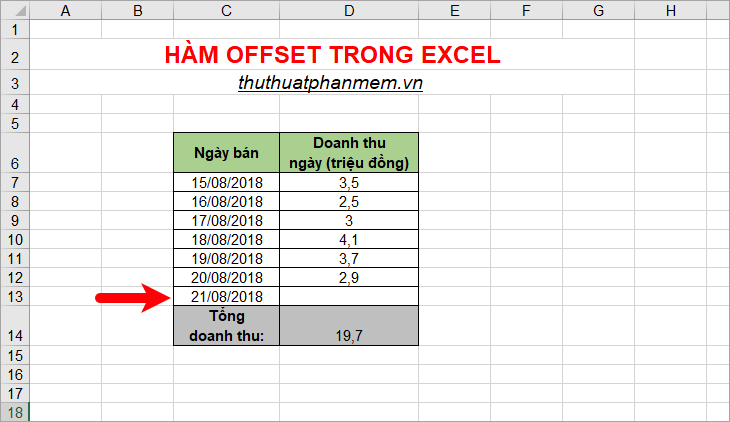 730×422 offset function excel usage examples from tipsmake.com
 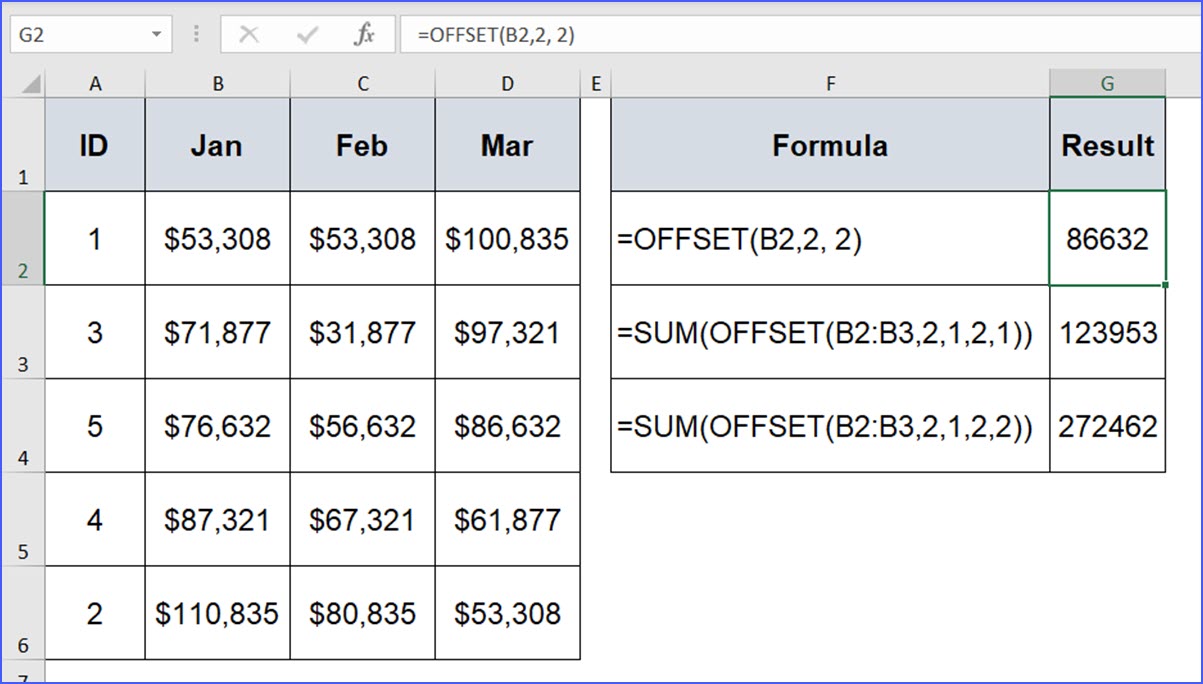 1203×684 offset function excelnotes from excelnotes.com
  604×367 offset function excel easy excel tutorial from www.excel-easy.com
  700×332 offset function excel teachexcelcom from www.teachexcel.com
 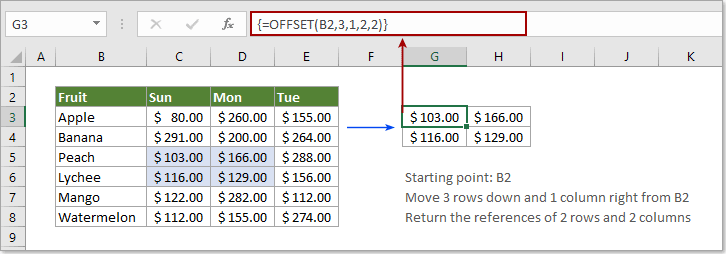 726×254 offset function excel from www.extendoffice.com
  1024×563 offset function excel solutions offset functions from yodalearning.com
 How To Use The Offset Function In Excel With Examples was posted in January 26, 2026 at 4:33 am. If you wanna have it as yours, please click the Pictures and you will go to click right mouse then Save Image As and Click Save and download the How To Use The Offset Function In Excel With Examples Picture.. Don’t forget to share this picture with others via Facebook, Twitter, Pinterest or other social medias! we do hope you'll get inspired by ExcelKayra... Thanks again! If you have any DMCA issues on this post, please contact us!