
Best Excel Formula To Separate Names Into Columns
Best Excel Formula To Separate Names Into Columns - There are a lot of affordable templates out there, but it can be easy to feel like a lot of the best cost a amount of money, require best special design template. Making the best template format choice is way to your template success. And if at this time you are looking for information and ideas regarding the Best Excel Formula To Separate Names Into Columns then, you are in the perfect place. Get this Best Excel Formula To Separate Names Into Columns for free here. We hope this post Best Excel Formula To Separate Names Into Columns inspired you and help you what you are looking for.
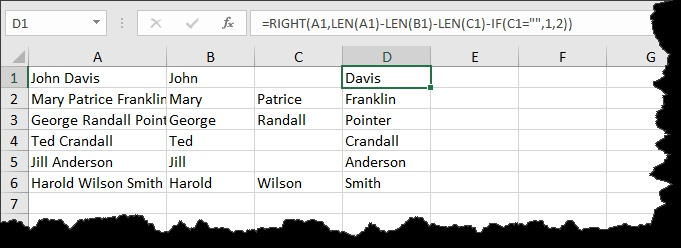
Best Excel Formulas for Separating Names into Columns
Handling data in Excel often involves cleaning and organizing information, and one frequent task is separating full names into individual columns for first name, middle name, and last name. Excel provides several formulas to achieve this, each with its strengths and weaknesses depending on the consistency and complexity of your name data. This guide will explore the best formulas and approaches to effectively split names, covering various scenarios and edge cases.
The Text to Columns Feature: A Quick Start
Before diving into formulas, it’s important to acknowledge the Text to Columns feature. This is the simplest and often quickest method, especially for a one-time operation. You select the column containing the full names, go to the “Data” tab, click “Text to Columns,” choose “Delimited” (usually space), and then specify the delimiter (again, usually space). This method is extremely efficient when your names are uniformly formatted and consistently separated by spaces. However, it lacks the dynamic update capabilities of formulas; if the original name changes, the separated values won’t automatically update.
Core Formulas for Splitting Names
These are the foundational formulas for name separation. They can be combined and modified for more complex scenarios.
LEFT, RIGHT, and MID: The Building Blocks
- LEFT(text, num_chars): Extracts a specified number of characters from the beginning of a text string.
- RIGHT(text, num_chars): Extracts a specified number of characters from the end of a text string.
- MID(text, start_num, num_chars): Extracts a specified number of characters from a text string, starting at a specified position.
These functions, on their own, require knowing the exact character positions where the name components start and end. That’s where the FIND and LEN functions come in.
FIND and LEN: Locating Delimiters and Measuring Length
- FIND(find_text, within_text, [start_num]): Locates the position of a specific character (find_text) within a text string (within_text). The optional `start_num` argument allows you to begin the search at a specific character position.
- LEN(text): Returns the number of characters in a text string.
These two functions are crucial for dynamically identifying where spaces (or other delimiters) are located in the full name, enabling us to use LEFT, RIGHT, and MID effectively.
Basic First and Last Name Separation
Assuming names are in the “First Last” format, here’s how to separate them:
First Name:
=LEFT(A1,FIND(" ",A1)-1)
This formula finds the position of the first space in cell A1 (containing the full name) and then extracts all characters to the left of that space (excluding the space itself). The “-1” is essential to avoid including the space character in the extracted first name.
Last Name:
=RIGHT(A1,LEN(A1)-FIND(" ",A1))
This formula calculates the length of the full name (LEN(A1)) and subtracts the position of the first space (FIND(” “,A1)). The result is the number of characters in the last name, which is then used by the RIGHT function to extract the correct portion of the string.
Handling Middle Names/Initials
The above formulas break down when middle names or initials are present. Here’s how to adjust for the “First Middle Last” format:
First Name: (Remains the same)
=LEFT(A1,FIND(" ",A1)-1)
Middle Name/Initial:
=MID(A1,FIND(" ",A1)+1,FIND(" ",A1,FIND(" ",A1)+1)-FIND(" ",A1)-1)
This is where things get a bit more complex. Let’s break it down:
FIND(" ",A1)finds the position of the first space (between the first and middle name).FIND(" ",A1,FIND(" ",A1)+1)finds the position of the *second* space. The `start_num` argument in FIND is used to tell it to start searching *after* the first space.MID(A1,FIND(" ",A1)+1, ... )starts extracting from the character *after* the first space.- The `num_chars` argument in MID is calculated as the position of the second space minus the position of the first space minus 1. This effectively extracts the characters between the first and second space, excluding the spaces themselves.
Last Name:
=RIGHT(A1,LEN(A1)-FIND(" ",A1,FIND(" ",A1)+1))
Similar to the middle name formula, this leverages the second space position to determine the starting point of the last name.
Dealing with Names That Might Not Have Middle Names
The previous formulas will return an error if a name only has a first and last name (i.e., no second space to find). To handle this, we can use the IFERROR function.
Middle Name/Initial (with error handling):
=IFERROR(MID(A1,FIND(" ",A1)+1,FIND(" ",A1,FIND(" ",A1)+1)-FIND(" ",A1)-1),"")
If the `MID` formula returns an error (because the second `FIND` fails to find a second space), the IFERROR function will return an empty string (“”), indicating that there is no middle name/initial.
Last Name (with error handling):
=IFERROR(RIGHT(A1,LEN(A1)-FIND(" ",A1,FIND(" ",A1)+1)),RIGHT(A1,LEN(A1)-FIND(" ",A1)))
This formula checks if the second space exists. If it does, it uses the previous formula to extract the last name. If the second space doesn’t exist (meaning only a first and last name), it defaults to the simpler last name formula from the basic first/last name separation section.
More Robust Solutions with VBA
For highly complex scenarios, especially with varying name formats (e.g., titles like “Dr.” or suffixes like “Jr.”), VBA (Visual Basic for Applications) provides the most flexible solution. You can create a custom function that parses the name based on specific rules and patterns. While VBA is beyond the scope of this document, it’s worth noting that it’s the most powerful tool for handling truly inconsistent name data.
Real-World Considerations and Tips
- Trim Spaces: Before applying any of these formulas, consider using the TRIM function to remove leading and trailing spaces, and any extra spaces between names. This will improve accuracy:
=TRIM(A1). - Name Order Variations: These formulas assume “First Middle Last” or “First Last” order. If your data has names in “Last, First” format, you’ll need to adjust the formulas accordingly, likely involving using the comma as a delimiter.
- Titles and Suffixes: Handling titles (Dr., Mr., Ms.) and suffixes (Jr., III, PhD) requires significantly more sophisticated parsing, often best achieved with VBA. You might need to create separate columns to store these elements.
- Testing: Always thoroughly test your formulas with a representative sample of your data to ensure they handle all variations correctly.
- Consistency is Key: The more consistent your name data is, the easier it will be to separate it using formulas. If possible, enforce a consistent data entry format.
By understanding these Excel formulas and techniques, you can effectively separate names into individual columns, enabling better data analysis and organization.
 1340×704 excel text columns separate names from www.germanpearls.com
  681×248 separating names individual columns microsoft excel from excelribbon.tips.net
 Best Excel Formula To Separate Names Into Columns was posted in February 17, 2026 at 4:29 am. If you wanna have it as yours, please click the Pictures and you will go to click right mouse then Save Image As and Click Save and download the Best Excel Formula To Separate Names Into Columns Picture.. Don’t forget to share this picture with others via Facebook, Twitter, Pinterest or other social medias! we do hope you'll get inspired by ExcelKayra... Thanks again! If you have any DMCA issues on this post, please contact us!