
How To Track Utility Usage And Cost In Excel
How To Track Utility Usage And Cost In Excel - There are a lot of affordable templates out there, but it can be easy to feel like a lot of the best cost a amount of money, require best special design template. Making the best template format choice is way to your template success. And if at this time you are looking for information and ideas regarding the How To Track Utility Usage And Cost In Excel then, you are in the perfect place. Get this How To Track Utility Usage And Cost In Excel for free here. We hope this post How To Track Utility Usage And Cost In Excel inspired you and help you what you are looking for.
“`html
Tracking Utility Usage and Cost in Excel
Effectively managing your household or business budget requires a clear understanding of your utility expenses. Excel provides a powerful and flexible platform to track your utility usage and costs, enabling you to identify trends, spot potential problems, and ultimately, save money. This guide will walk you through creating a comprehensive utility tracking system in Excel.
1. Setting Up Your Spreadsheet
Start by opening a new Excel workbook. Consider these key columns for your data:
* **Date:** (Format: Date) The date of the utility reading or billing period. * **Utility Type:** (Format: Text) Categorize your utilities (e.g., Electricity, Gas, Water, Sewer, Trash). * **Account Number (Optional):** (Format: Text) Helpful if you have multiple accounts per utility type. * **Reading Start:** (Format: Number) The meter reading at the beginning of the period. Leave blank for bills that don’t provide this data. * **Reading End:** (Format: Number) The meter reading at the end of the period. * **Usage:** (Format: Number) The amount of utility consumed (e.g., kWh for electricity, therms for gas, gallons for water). * **Unit:** (Format: Text) The unit of measurement for usage (e.g., kWh, therms, gallons). * **Base Charge (Optional):** (Format: Currency) Any fixed monthly fee, regardless of usage. * **Usage Charge:** (Format: Currency) The charge based on the amount of utility consumed. * **Taxes/Fees:** (Format: Currency) Any applicable taxes or fees. * **Total Cost:** (Format: Currency) The total amount billed for that utility. * **Notes (Optional):** (Format: Text) For any relevant comments (e.g., “Vacation – lower usage,” “Price increase”).
Populate the first row with these column headers. Freeze the top row (View -> Freeze Panes -> Freeze Top Row) to keep the headers visible as you scroll.
2. Entering Your Data
Carefully enter the data from your utility bills into the corresponding columns. Consistency is key. Ensure you’re using the correct units and that the dates are accurate. For the “Usage” column, you can often calculate it directly in Excel using a formula:
=IF(ISBLANK([@ReadingStart]),"",[@ReadingEnd]-[@ReadingStart])
This formula subtracts the starting reading from the ending reading to calculate the usage. The `IF(ISBLANK([@ReadingStart]),””, …)` part handles cases where the starting reading is unavailable, preventing errors. Replace `[@ReadingStart]` and `[@ReadingEnd]` with the actual cell references (e.g., `C2` and `D2`). When using Excel tables (recommended, see below), the `[@ColumnName]` notation allows Excel to automatically adjust the formula as you add new rows.
Similarly, calculate the “Total Cost”:
=[@BaseCharge]+[@UsageCharge]+[@TaxesFees]
Again, adjust the cell references to match your spreadsheet. If you don’t have a separate base charge, usage charge, and taxes/fees on your bill, you can simply enter the total amount directly into the “Total Cost” column.
3. Using Excel Tables (Highly Recommended)
Convert your data range into an Excel table (Insert -> Table). Excel tables offer numerous advantages:
* **Automatic Formatting:** Tables apply consistent formatting and styling. * **Calculated Columns:** Formulas in calculated columns automatically extend to new rows. This is where the `[@ColumnName]` notation becomes very powerful. * **Filtering and Sorting:** Easily filter and sort your data to analyze specific periods or utilities. * **Structured References:** Tables use structured references (`[@ColumnName]`) instead of cell references (e.g., `A2`), making formulas more readable and robust. * **Total Row:** A built-in Total Row calculates sums, averages, or other statistics for selected columns.
4. Data Validation (Optional but Recommended)
Data validation helps prevent errors and ensures consistency. Here are some examples:
* **Utility Type:** Create a dropdown list of valid utility types (Electricity, Gas, Water, etc.). Select the “Utility Type” column, go to Data -> Data Validation, choose “List” under “Allow,” and enter the list of values separated by commas in the “Source” field. * **Reading Start/End:** Ensure that the ending reading is always greater than or equal to the starting reading. Select the “Reading End” column, go to Data -> Data Validation, choose “Whole Number” under “Allow,” select “greater than or equal to” under “Data,” and enter the cell reference for the corresponding “Reading Start” cell in the “Minimum” field (e.g., `=C2` if C2 is the first “Reading Start” cell). * **Usage:** You can also add data validation to the usage column to ensure its within a reasonable range or to prevent manual entry if it’s automatically calculated.
5. Analyzing Your Data with Charts and PivotTables
Once you have sufficient data, you can begin analyzing it using Excel’s charting and PivotTable features.
* **Charts:** * **Line Chart (Usage Over Time):** Select the “Date” and “Usage” columns for a specific utility, go to Insert -> Line Chart, and choose a line chart type. This will show you how your usage changes over time. * **Column Chart (Cost by Utility):** Create a PivotTable (see below) that summarizes the total cost for each utility. Then, select the PivotTable data and go to Insert -> Column Chart to create a column chart visualizing the cost breakdown. * **PivotTables:** * **Total Cost by Utility:** Select your data range (including the column headers), go to Insert -> PivotTable, and choose where to place the PivotTable. Drag “Utility Type” to the “Rows” area and “Total Cost” to the “Values” area. The PivotTable will automatically calculate the sum of the total cost for each utility type. * **Monthly Usage Trends:** Drag “Date” to the “Rows” area and “Usage” to the “Values” area. Excel may automatically group the dates by month. If not, right-click on the date field in the PivotTable, select “Group,” and choose “Months” (and optionally “Years”). This will show you your monthly usage for each utility. * **Average Cost per Unit:** Create a calculated field in your PivotTable (PivotTable Analyze -> Fields, Items, & Sets -> Calculated Field). Name the field (e.g., “CostPerUnit”) and enter the formula `=’Total Cost’/’Usage’`. This will calculate the average cost per unit of utility consumed.
6. Advanced Techniques
* **Conditional Formatting:** Use conditional formatting to highlight high usage periods or unexpected cost increases. For example, you could highlight cells in the “Usage” column that are above a certain threshold. * **Goal Seek:** Use Goal Seek (Data -> What-If Analysis -> Goal Seek) to determine how much you need to reduce your usage to reach a specific cost target. * **Macros (VBA):** For advanced users, macros can automate repetitive tasks such as importing data from external files or generating reports. * **Power Query (Get & Transform Data):** If your utility data is stored in separate files (e.g., monthly statements in PDF format), Power Query can help you extract and combine the data into a single table in Excel. This often requires additional tools like PDF converters that export data into usable formats like CSV.
7. Regular Updates and Maintenance
The key to successful utility tracking is to regularly update your spreadsheet with new data. Set a reminder to enter your utility information each month. Periodically review your data and charts to identify trends and potential areas for improvement. You can also adjust your spreadsheet over time to better meet your specific needs and tracking goals.
By diligently tracking your utility usage and cost in Excel, you’ll gain valuable insights into your energy consumption patterns, identify opportunities to save money, and take control of your household or business budget.
“`
 1224×1214 utility tracking spreadsheet db excelcom from db-excel.com
 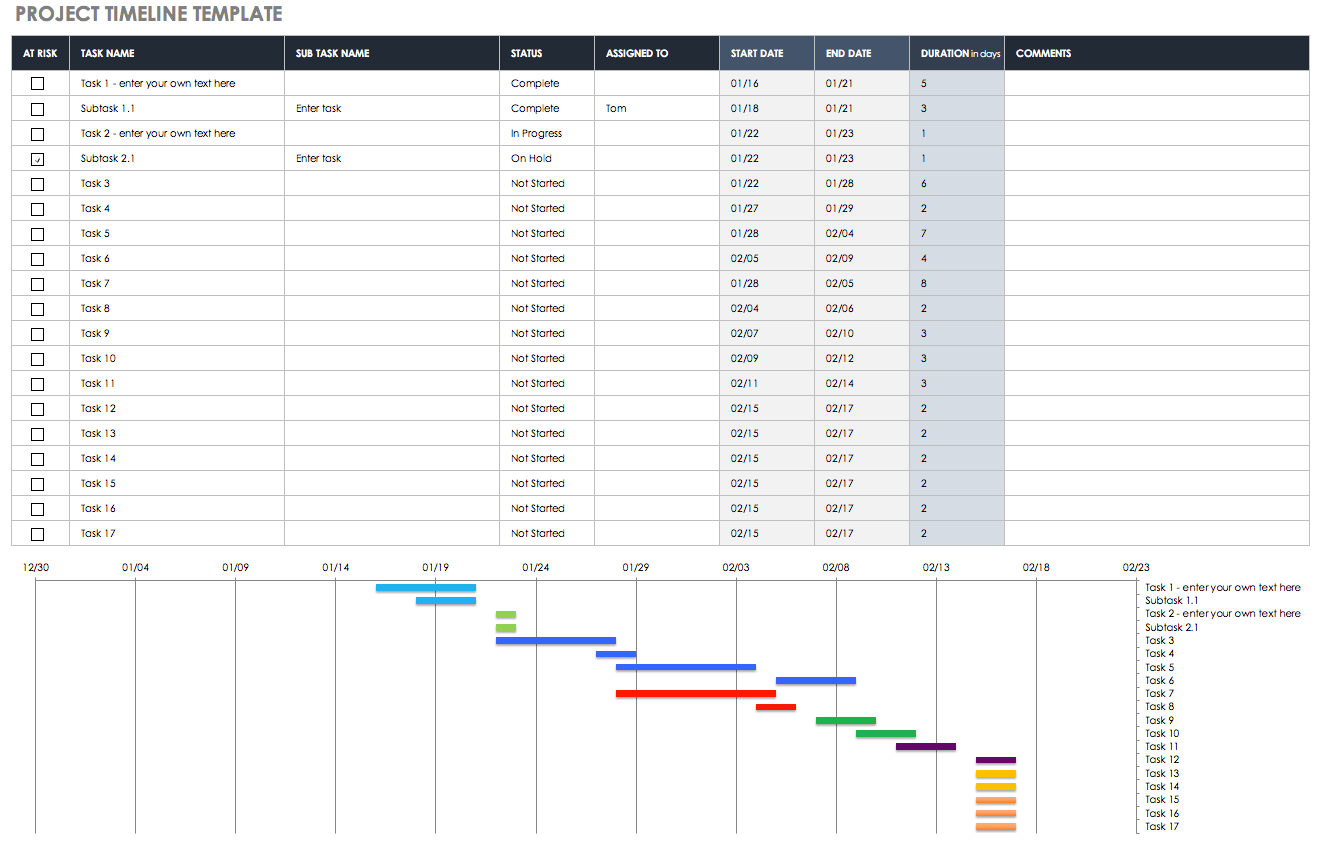 1335×847 utility tracker spreadsheet db excelcom from db-excel.com
  1048×812 utility bill analysis spreadsheet db excelcom from db-excel.com
  800×993 utility bill tracking spreadsheet db excelcom from db-excel.com
  1024×1024 utility bill tracking spreadsheet utility bill tracking from db-excel.com
 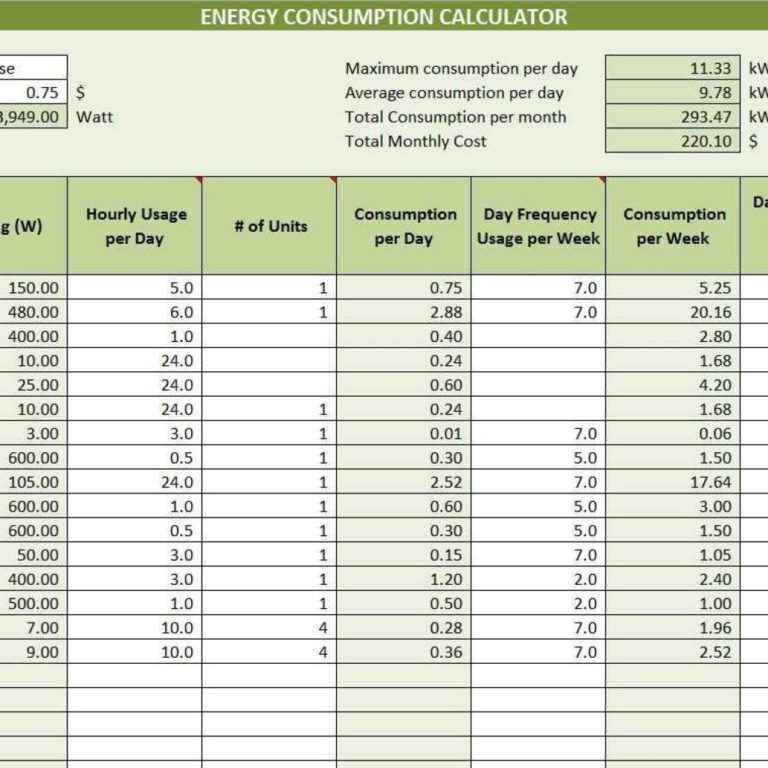 768×768 utility tracker spreadsheet utility tracking spreadsheet from db-excel.com
  1381×863 utility bill tracking spreadsheet utility tracking spreadsheet from db-excel.com
  1024×819 utility tracker spreadsheet regard utility tracking spreadsheet from db-excel.com
 How To Track Utility Usage And Cost In Excel was posted in January 28, 2026 at 11:21 am. If you wanna have it as yours, please click the Pictures and you will go to click right mouse then Save Image As and Click Save and download the How To Track Utility Usage And Cost In Excel Picture.. Don’t forget to share this picture with others via Facebook, Twitter, Pinterest or other social medias! we do hope you'll get inspired by ExcelKayra... Thanks again! If you have any DMCA issues on this post, please contact us!