
How To Use Sumproduct Function In Excel
How To Use Sumproduct Function In Excel - There are a lot of affordable templates out there, but it can be easy to feel like a lot of the best cost a amount of money, require best special design template. Making the best template format choice is way to your template success. And if at this time you are looking for information and ideas regarding the How To Use Sumproduct Function In Excel then, you are in the perfect place. Get this How To Use Sumproduct Function In Excel for free here. We hope this post How To Use Sumproduct Function In Excel inspired you and help you what you are looking for.
Understanding and Utilizing the SUMPRODUCT Function in Excel
The SUMPRODUCT function in Excel is a powerful tool that allows you to perform complex calculations on arrays (ranges of cells). At its core, it multiplies corresponding components in one or more arrays and then returns the sum of those products. While seemingly simple in concept, SUMPRODUCT’s versatility makes it indispensable for a wide range of data analysis tasks. This guide will delve into the intricacies of SUMPRODUCT, exploring its syntax, functionality, and practical applications with illustrative examples.
Syntax and Basic Functionality
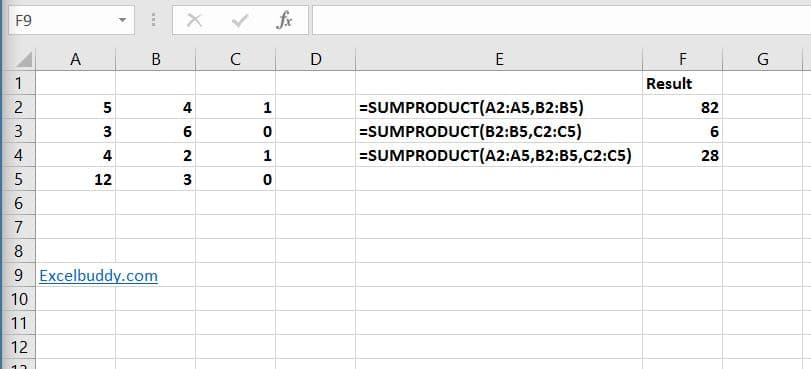
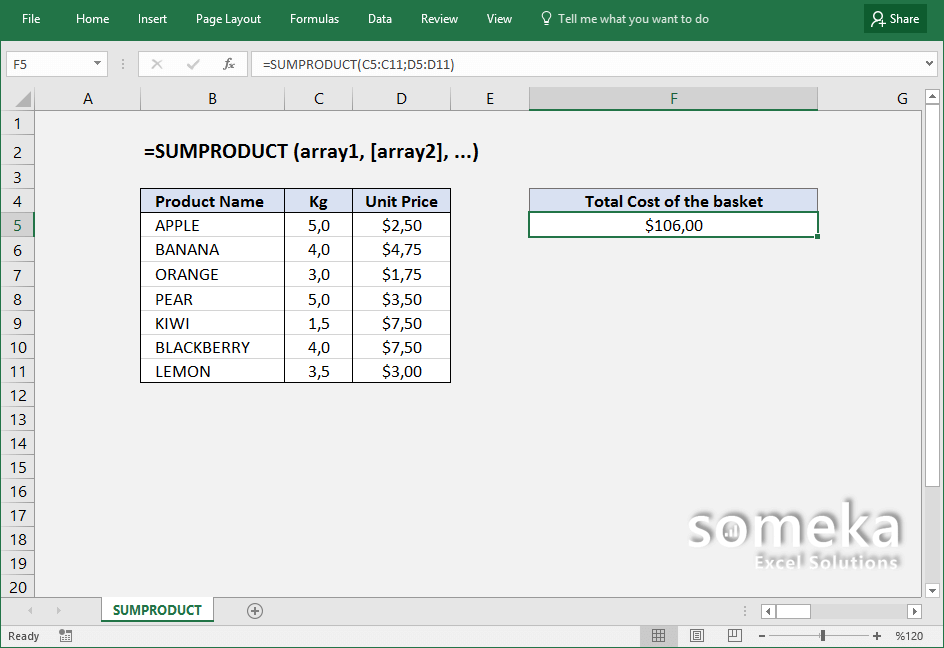
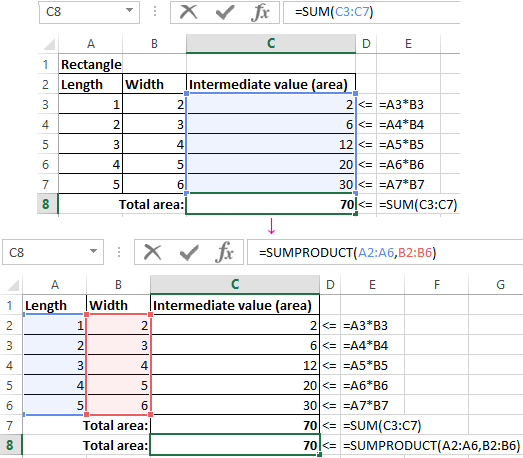
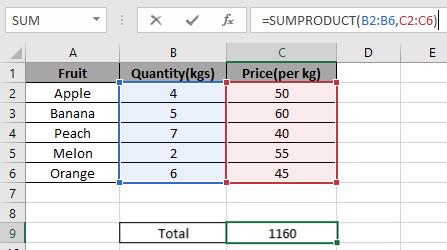
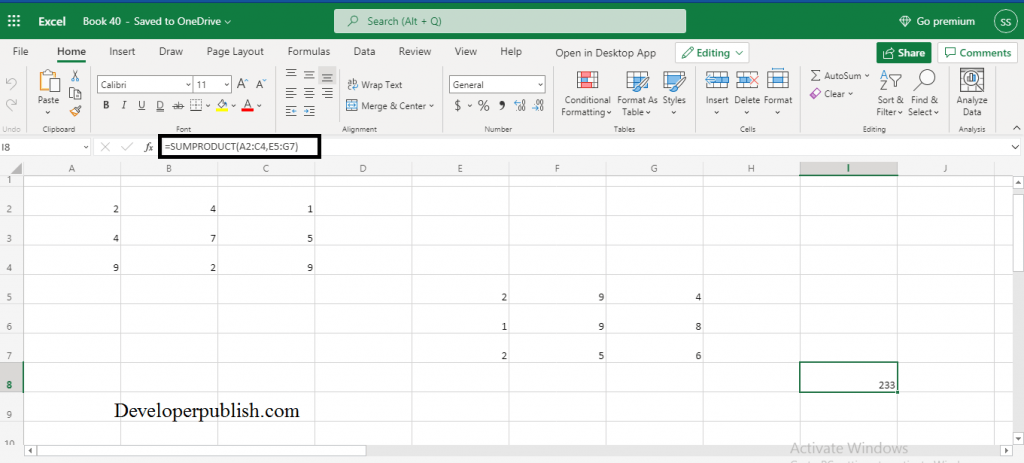
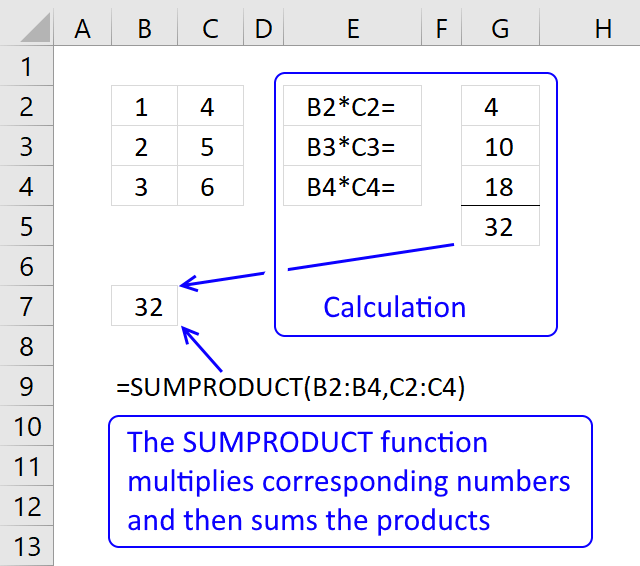
The SUMPRODUCT function follows this syntax: `=SUMPRODUCT(array1, [array2], [array3], …)` * **array1, array2, array3, …**: These are the arrays (ranges of cells) you want to multiply and then sum. You can have up to 255 arrays. The crucial requirement is that all arrays must have the same dimensions (number of rows and columns) for the function to work correctly. In its most basic form, if you provide two arrays, SUMPRODUCT multiplies the first element of array1 with the first element of array2, the second element of array1 with the second element of array2, and so on. Then, it sums up all these individual products. For example, if you have: * Array1: {1, 2, 3} * Array2: {4, 5, 6} SUMPRODUCT({1, 2, 3}, {4, 5, 6}) would calculate: (1 * 4) + (2 * 5) + (3 * 6) = 4 + 10 + 18 = 32 The function would return 32.
Practical Applications and Examples
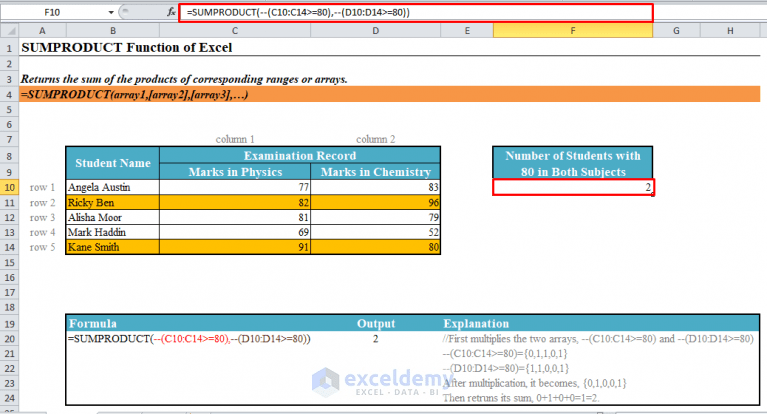
SUMPRODUCT’s real strength lies in its ability to perform calculations based on criteria, effectively acting as a combination of multiplication and conditional summing. Here are several common use cases: **1. Weighted Averages:** Imagine you have a table of products, their prices, and the quantity sold. To calculate the weighted average price, you would multiply each product’s price by its quantity sold, sum those products, and then divide by the total quantity sold. SUMPRODUCT simplifies this: * Column A (Price): {10, 15, 20} * Column B (Quantity): {5, 3, 2} `=SUMPRODUCT(A1:A3, B1:B3) / SUM(B1:B3)` This calculates: ((10 * 5) + (15 * 3) + (20 * 2)) / (5 + 3 + 2) = (50 + 45 + 40) / 10 = 135 / 10 = 13.5 Therefore, the weighted average price is 13.5. **2. Conditional Summing (Single Criteria):** You can use SUMPRODUCT to sum values based on a single condition. Let’s say you have a list of sales transactions with the salesperson’s name and the sale amount. You want to find the total sales for a specific salesperson, say “John”. * Column A (Salesperson): {“John”, “Jane”, “John”, “Peter”, “Jane”} * Column B (Sale Amount): {100, 150, 200, 120, 180} `=SUMPRODUCT((A1:A5=”John”) * B1:B5)` Here’s how it works: * `(A1:A5=”John”)` creates an array of TRUE/FALSE values: {TRUE, FALSE, TRUE, FALSE, FALSE} * In Excel, TRUE is treated as 1 and FALSE as 0. So, the array becomes: {1, 0, 1, 0, 0} * This array is then multiplied by the Sale Amount array: {1*100, 0*150, 1*200, 0*120, 0*180} = {100, 0, 200, 0, 0} * Finally, SUMPRODUCT sums these values: 100 + 0 + 200 + 0 + 0 = 300 Therefore, John’s total sales are 300. **3. Conditional Summing (Multiple Criteria):** SUMPRODUCT shines when dealing with multiple criteria. Suppose you want to find the total sales for “John” specifically in the “East” region. * Column A (Salesperson): {“John”, “Jane”, “John”, “Peter”, “Jane”, “John”} * Column B (Region): {“East”, “West”, “East”, “West”, “East”, “West”} * Column C (Sale Amount): {100, 150, 200, 120, 180, 250} `=SUMPRODUCT((A1:A6=”John”) * (B1:B6=”East”) * C1:C6)` Explanation: * `(A1:A6=”John”)` returns {1, 0, 1, 0, 0, 0} * `(B1:B6=”East”)` returns {1, 0, 1, 0, 1, 0} * These arrays are multiplied together: {1*1, 0*0, 1*1, 0*0, 0*1, 0*0} = {1, 0, 1, 0, 0, 0} * This resulting array is multiplied by the Sale Amount: {1*100, 0*150, 1*200, 0*120, 0*180, 0*250} = {100, 0, 200, 0, 0, 0} * SUMPRODUCT sums the values: 100 + 0 + 200 + 0 + 0 + 0 = 300 John’s total sales in the East region are 300. **4. Counting with Criteria:** SUMPRODUCT can also count rows that meet specific criteria. For instance, you want to count the number of sales transactions made by “Jane” in the “East” region. * Column A (Salesperson): {“John”, “Jane”, “John”, “Peter”, “Jane”, “John”} * Column B (Region): {“East”, “West”, “East”, “West”, “East”, “West”} `=SUMPRODUCT((A1:A6=”Jane”) * (B1:B6=”East”))` This works similarly to conditional summing, but since you only want to count, you don’t need a separate column for values to sum. The multiplication of the TRUE/FALSE arrays directly gives you the count. * `(A1:A6=”Jane”)` returns {0, 1, 0, 0, 1, 0} * `(B1:B6=”East”)` returns {1, 0, 1, 0, 1, 0} * {0*1, 1*0, 0*1, 0*0, 1*1, 0*0} = {0, 0, 0, 0, 1, 0} * SUMPRODUCT sums the values: 0 + 0 + 0 + 0 + 1 + 0 = 1 Jane made 1 sale in the East region. **Important Considerations:** * **Array Size:** As mentioned earlier, all arrays used in SUMPRODUCT must have the same dimensions. If they don’t, Excel will return a `#VALUE!` error. * **Non-Numeric Values:** If any of the arrays contain non-numeric values (other than TRUE/FALSE, which are coerced to 1/0), SUMPRODUCT will treat those values as 0. This can lead to unexpected results if you’re not aware of it. * **Alternatives:** While SUMPRODUCT is powerful, functions like `SUMIFS` and `COUNTIFS` (introduced in later versions of Excel) offer more specific and potentially more efficient solutions for conditional summing and counting. However, SUMPRODUCT remains valuable for its flexibility and compatibility with older Excel versions. * **Performance:** SUMPRODUCT can be computationally intensive, especially when used with large datasets. Consider using alternative methods if performance becomes an issue. In conclusion, SUMPRODUCT is a versatile function in Excel that allows you to perform complex calculations involving arrays. By understanding its syntax and functionality, you can leverage it for a wide range of data analysis tasks, from calculating weighted averages to performing conditional summing and counting based on multiple criteria. While newer functions may offer more specialized solutions, SUMPRODUCT’s flexibility and compatibility make it a valuable tool in any Excel user’s arsenal.
 752×551 excel sumproduct function video from trumpexcel.com
  563×464 sumproduct function excel excel zoom from excelzoom.com
  811×369 sumproduct function excel excelbuddycom from excelbuddy.com
  944×648 excel sumproduct function formula video examples from www.someka.net
  1202×684 sumproduct function excelnotes from excelnotes.com
  767×414 sumproduct function excel examples exceldemy from www.exceldemy.com
  700×400 excel sumproduct function exceljet from exceljet.net
  461×351 excel sumproduct function from www.exceltrick.com
  523×458 sumproduct function examples from exceltable.com
  447×250 sumproduct function excel from www.exceltip.com
  1024×463 sumproduct function excel developer publish from developerpublish.com
  480×360 sumproduct function microsoft excel microsoft from ms-office.wonderhowto.com
  1372×366 excel sumproduct function compute expert from computeexpert.com
  640×566 sumproduct function from www.get-digital-help.com
 How To Use Sumproduct Function In Excel was posted in January 27, 2026 at 12:45 pm. If you wanna have it as yours, please click the Pictures and you will go to click right mouse then Save Image As and Click Save and download the How To Use Sumproduct Function In Excel Picture.. Don’t forget to share this picture with others via Facebook, Twitter, Pinterest or other social medias! we do hope you'll get inspired by ExcelKayra... Thanks again! If you have any DMCA issues on this post, please contact us!