
How To Use Vlookup For Approximate Matches In Excel
How To Use Vlookup For Approximate Matches In Excel - There are a lot of affordable templates out there, but it can be easy to feel like a lot of the best cost a amount of money, require best special design template. Making the best template format choice is way to your template success. And if at this time you are looking for information and ideas regarding the How To Use Vlookup For Approximate Matches In Excel then, you are in the perfect place. Get this How To Use Vlookup For Approximate Matches In Excel for free here. We hope this post How To Use Vlookup For Approximate Matches In Excel inspired you and help you what you are looking for.
Using VLOOKUP for Approximate Matches in Excel
VLOOKUP is one of Excel’s most powerful and versatile functions, primarily used to search for a value in a table and return a corresponding value from the same row. While commonly used for exact matches, VLOOKUP also offers the capability to find approximate matches, expanding its usefulness in various scenarios where precise matches might not exist or be practical.
Understanding VLOOKUP Syntax
Before delving into approximate matches, let’s recap the basic syntax of the VLOOKUP function:
=VLOOKUP(lookup_value, table_array, col_index_num, [range_lookup])Here’s a breakdown of each argument:
- lookup_value: The value you want to search for in the first column of the table array. This is your search key.
- table_array: The range of cells containing the data you want to search. The first column of this range is where VLOOKUP searches for the lookup_value.
- col_index_num: The column number within the table_array from which you want to retrieve the matching value. The first column of the table_array is column 1, the second is column 2, and so on.
- [range_lookup]: This is an optional argument that determines whether VLOOKUP searches for an exact or approximate match.
- TRUE (or omitted): Performs an approximate match. Crucially, the first column of the table_array *must* be sorted in ascending order for approximate matching to work correctly. If VLOOKUP cannot find an exact match, it will return the closest match that is less than or equal to the lookup_value.
- FALSE: Performs an exact match. VLOOKUP will only return a value if it finds an exact match for the lookup_value in the first column of the table_array. If no exact match is found, it will return the #N/A error.
The Key to Approximate Matches: The range_lookup Argument and Sorted Data
The range_lookup argument is the key to unlocking VLOOKUP’s approximate matching capabilities. When set to TRUE (or omitted, as it defaults to TRUE), VLOOKUP attempts to find an exact match first. However, if an exact match isn’t found, it searches for the largest value in the first column of the table_array that is less than or equal to the lookup_value. This “less than or equal to” behavior is vital for understanding how approximate matches work.
The critical requirement for using approximate matching is that the first column of your table_array must be sorted in ascending order. If the data is not sorted, VLOOKUP will likely return an incorrect or unpredictable result, leading to inaccurate lookups and potential errors. This is arguably the most common pitfall when using VLOOKUP for approximate matching.
Scenarios Where Approximate Matching Shines
Approximate matching with VLOOKUP is particularly useful in scenarios where data is organized into ranges or brackets, and you want to find a corresponding value based on where a given value falls within those ranges. Here are a few common examples:
- Tax Brackets: You can use VLOOKUP to determine the tax rate applicable to a specific income level based on a tax bracket table. The first column of the table would contain the lower limit of each income bracket, sorted in ascending order. The second column would contain the corresponding tax rate.
- Commission Rates: Similar to tax brackets, you can use VLOOKUP to calculate commission rates based on sales volume. The table would have sales volume thresholds in the first column and the corresponding commission rates in the second.
- Grade Assignments: You can assign letter grades (A, B, C, D, F) based on numerical scores. The table would have the minimum score for each grade in the first column (sorted ascending) and the letter grade in the second column.
- Shipping Costs: Determine shipping costs based on package weight. The first column of the table would list weight ranges, and the second column would contain the corresponding shipping cost.
- Discount Tiers: Apply different discount percentages based on the quantity of items purchased. The table would list quantity thresholds in the first column and the corresponding discount percentages in the second.
Example: Calculating Commission Rates
Let’s illustrate with a concrete example. Suppose you have the following commission rate structure:
| Sales Volume | Commission Rate |
|---|---|
| $0 | 0% |
| $10,000 | 5% |
| $25,000 | 7% |
| $50,000 | 10% |
This table means:
- Sales volume from $0 to $9,999.99 earns 0% commission.
- Sales volume from $10,000 to $24,999.99 earns 5% commission.
- Sales volume from $25,000 to $49,999.99 earns 7% commission.
- Sales volume of $50,000 or more earns 10% commission.
Assume this data is in cells A1:B5 of your Excel sheet, with headers in row 1. To calculate the commission rate for a salesperson with a sales volume of $35,000 (stored in cell D2), you would use the following VLOOKUP formula:
=VLOOKUP(D2, A2:B5, 2, TRUE)Here’s how it works:
- D2 (lookup_value): The sales volume of $35,000.
- A2:B5 (table_array): The range containing the commission rate table. Note that the sales volume column (A2:A5) *is* sorted in ascending order.
- 2 (col_index_num): We want to retrieve the commission rate from the second column of the table (column B).
- TRUE (range_lookup): We want to perform an approximate match.
VLOOKUP will search the first column (A2:A5) for $35,000. Since it doesn’t find an exact match, it looks for the largest value that is less than or equal to $35,000. That value is $25,000 (in cell A4). It then returns the corresponding value from the second column (B4), which is 7%. Therefore, the formula will return 0.07 (or 7% when formatted as a percentage).
Important Considerations and Potential Issues
While powerful, VLOOKUP with approximate matching requires careful attention to detail to avoid errors:
- Sorted Data: The absolute most important rule is that the first column of the table_array *must* be sorted in ascending order. Failure to sort the data correctly will lead to incorrect results.
- Handling Values Below the Lowest Range: If the lookup_value is less than the smallest value in the first column of the table_array, VLOOKUP will return a #N/A error. You can handle this by adding a row to your table with a minimum value of 0 (or a suitably low value for your scenario) and the corresponding value for that range. For example, in the commission rate example, if a salesperson had sales of -$100, the formula would return #N/A unless you have a row like: $0, 0%. Since their sales are *below* the lowest value in the table (which is technically an error) excel doesn’t know what to return.
- Data Type Consistency: Ensure that the data types of the lookup_value and the values in the first column of the table_array are consistent (e.g., both numbers or both text). Inconsistent data types can lead to unexpected results.
- Alternative Functions: While VLOOKUP is a popular choice, consider using other lookup functions like INDEX/MATCH or XLOOKUP (if available in your version of Excel) as they offer more flexibility and can overcome some of VLOOKUP’s limitations. INDEX/MATCH, in particular, does not require the lookup column to be the leftmost column and doesn’t depend on column order. XLOOKUP can perform both left and right lookups and handles errors more gracefully.
- Understanding the “Less Than or Equal To” Logic: Always remember that VLOOKUP, when used for approximate matching, returns the largest value in the first column that is *less than or equal to* the lookup_value. This behavior is crucial for designing your lookup tables correctly.
Conclusion
VLOOKUP’s approximate matching capabilities extend its utility beyond simple exact lookups. By understanding the range_lookup argument and adhering to the requirement of sorted data, you can effectively use VLOOKUP to handle scenarios involving ranges, brackets, and tiered systems. However, always exercise caution and double-check your results to ensure accuracy, especially when dealing with critical calculations. Remember to consider alternative functions like INDEX/MATCH or XLOOKUP for more flexible and robust solutions.
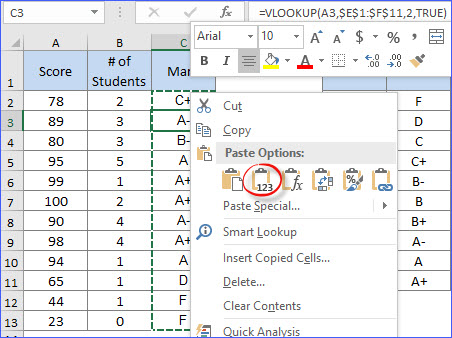 452×338 vlookup approximate match excelnotes from excelnotes.com
  1024×409 vlookup approximate match myexcelonline from www.myexcelonline.com
  1280×720 excel tutorial troubleshoot vlookup approximate match from exceljet.net
  720×232 vlookup exact match approximate match goskills from www.goskills.com
  474×234 vlookup exact approximate match excel from www.extendoffice.com
  300×140 exact approximate matching vlookup excel from ms-office.wonderhowto.com
  1280×720 vlookup approximate match microsoft excel basic advanced from www.goskills.com
 How To Use Vlookup For Approximate Matches In Excel was posted in January 17, 2026 at 9:36 am. If you wanna have it as yours, please click the Pictures and you will go to click right mouse then Save Image As and Click Save and download the How To Use Vlookup For Approximate Matches In Excel Picture.. Don’t forget to share this picture with others via Facebook, Twitter, Pinterest or other social medias! we do hope you'll get inspired by ExcelKayra... Thanks again! If you have any DMCA issues on this post, please contact us!