
Countifs Formula Examples In Excel For Data Analysis
Countifs Formula Examples In Excel For Data Analysis - There are a lot of affordable templates out there, but it can be easy to feel like a lot of the best cost a amount of money, require best special design template. Making the best template format choice is way to your template success. And if at this time you are looking for information and ideas regarding the Countifs Formula Examples In Excel For Data Analysis then, you are in the perfect place. Get this Countifs Formula Examples In Excel For Data Analysis for free here. We hope this post Countifs Formula Examples In Excel For Data Analysis inspired you and help you what you are looking for.
COUNTIFS Examples in Excel for Data Analysis
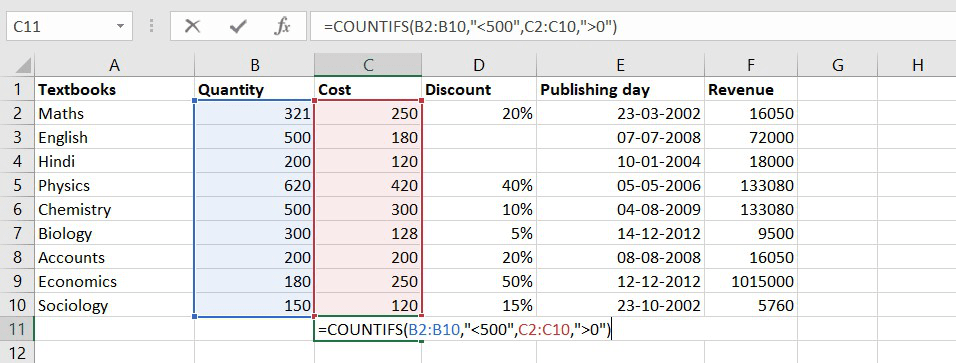
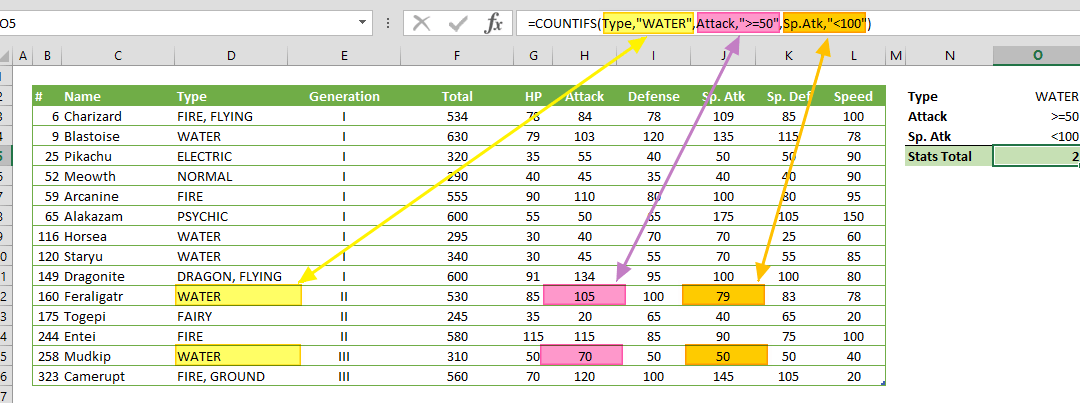
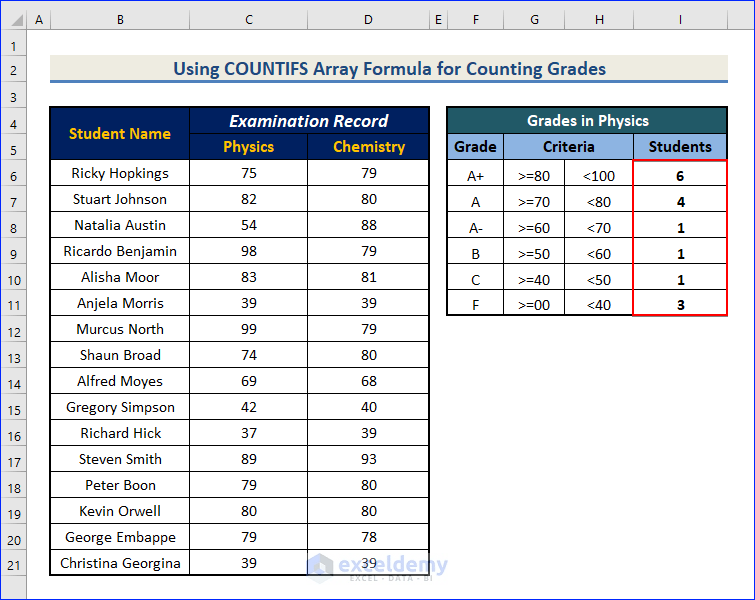
The COUNTIFS function in Excel is a powerful tool for data analysis, allowing you to count cells within a range that meet multiple criteria. Unlike the simpler COUNTIF function, which handles only one condition, COUNTIFS can evaluate several conditions simultaneously, making it ideal for more complex data analysis tasks. This document will explore various COUNTIFS examples, demonstrating its versatility and practical applications.
Basic COUNTIFS Syntax
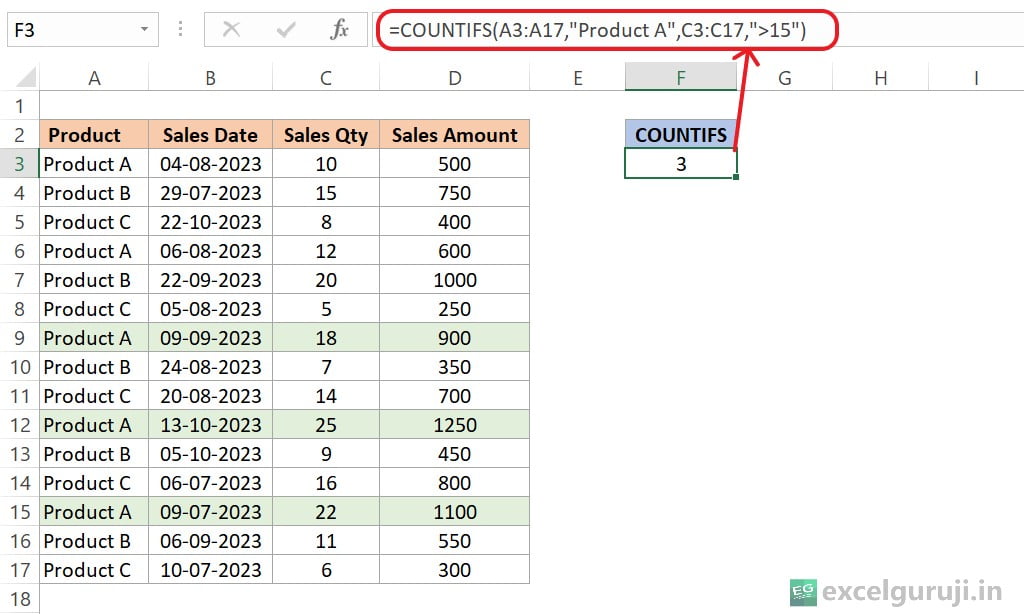
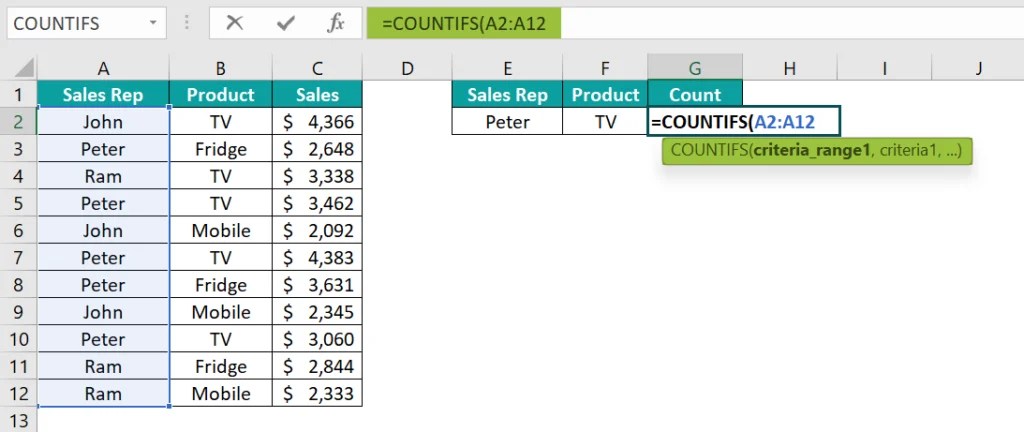
The general syntax of the COUNTIFS function is:
=COUNTIFS(criteria_range1, criteria1, [criteria_range2, criteria2], ...)Where:
criteria_range1: The first range of cells to evaluate.criteria1: The criteria used to evaluatecriteria_range1.[criteria_range2, criteria2]: Optional additional ranges and their corresponding criteria. You can have up to 127 range/criteria pairs.
Simple Examples
Example 1: Counting Sales Above a Certain Amount in a Specific Region
Imagine a table with sales data containing columns for “Region” and “Sales Amount.” You want to know how many sales exceeded $1000 in the “East” region.
Data:
| Region | Sales Amount |
|---|---|
| East | 1200 |
| West | 800 |
| East | 900 |
| East | 1500 |
| West | 1100 |
Formula:
=COUNTIFS(A2:A6, "East", B2:B6, ">1000")Explanation:
A2:A6: The range containing the “Region” data."East": The criteria for the “Region” range (looking for the value “East”).B2:B6: The range containing the “Sales Amount” data.">1000": The criteria for the “Sales Amount” range (looking for values greater than 1000). Note that comparison operators need to be enclosed in quotation marks.
Result: The formula would return 2, as there are two sales in the East region exceeding $1000.
Example 2: Counting Products with a Specific Category and Status
Suppose you have a list of products with columns for “Category” and “Status.” You want to count the number of “Electronics” products that are currently “In Stock.”
Data:
| Category | Status |
|---|---|
| Electronics | In Stock |
| Clothing | Out of Stock |
| Electronics | Out of Stock |
| Electronics | In Stock |
| Clothing | In Stock |
Formula:
=COUNTIFS(A2:A6, "Electronics", B2:B6, "In Stock")Explanation:
A2:A6: The range containing the “Category” data."Electronics": The criteria for the “Category” range.B2:B6: The range containing the “Status” data."In Stock": The criteria for the “Status” range.
Result: The formula would return 2, indicating that there are two “Electronics” products “In Stock.”
Advanced Examples
Example 3: Using Cell References as Criteria
Instead of hardcoding the criteria directly into the formula, you can use cell references. This makes the formula more dynamic and allows you to easily change the criteria without modifying the formula itself.
Let’s reuse the “Region” and “Sales Amount” data from Example 1. Assume cell D1 contains the region “East” and cell D2 contains the value 1000.
Formula:
=COUNTIFS(A2:A6, D1, B2:B6, ">"&D2)Explanation:
A2:A6: The range containing the “Region” data.D1: The cell containing the criteria for the “Region” range (in this case, “East”).B2:B6: The range containing the “Sales Amount” data.">"&D2: The criteria for the “Sales Amount” range. The&operator concatenates the “>” symbol (for greater than) with the value in cell D2 (1000). This constructs the criteria string “>1000”.
This formula is equivalent to the one in Example 1 but is more flexible because you can change the values in cells D1 and D2 to analyze different regions and sales amounts.
Example 4: Using Wildcard Characters
COUNTIFS supports wildcard characters for partial string matching. The asterisk (*) represents any sequence of characters, and the question mark (?) represents any single character.
Imagine a product database where product names are stored with abbreviations and suffixes. You want to count all products whose names start with “ABC.”
Data:
| Product Name |
|---|
| ABC-123 |
| XYZ-456 |
| ABC-789 |
| ABCD-000 |
Formula:
=COUNTIFS(A2:A5, "ABC*")Explanation:
A2:A5: The range containing the “Product Name” data."ABC*": The criteria. The asterisk (*) after “ABC” means that the formula will count any product name that begins with “ABC,” regardless of what comes after it.
Result: The formula would return 3, as there are three product names that start with “ABC.”
Example 5: Counting Dates Within a Specific Range
COUNTIFS can also be used with dates. You can count events or transactions that occurred within a particular date range.
Data:
| Date |
|---|
| 2023-01-15 |
| 2023-02-20 |
| 2023-03-10 |
| 2023-02-01 |
Assuming cell D1 contains the start date (2023-02-01) and cell D2 contains the end date (2023-02-28).
Formula:
=COUNTIFS(A2:A5, ">="&D1, A2:A5, "<="&D2)Explanation:
A2:A5: The range containing the "Date" data.">="&D1: The criteria for the start date. It counts dates that are greater than or equal to the date in cell D1 (2023-02-01)."<="&D2: The criteria for the end date. It counts dates that are less than or equal to the date in cell D2 (2023-02-28).
Result: The formula would return 2, as there are two dates within the specified date range.
Example 6: Combining Text, Numbers, and Dates
This example demonstrates how to combine text, numbers, and dates in a single COUNTIFS formula to analyze more complex data sets. Let's say you want to count the number of high-priority tasks that are due this week.
Data:
| Task Priority | Due Date |
|---|---|
| High | 2024-01-08 |
| Low | 2024-01-10 |
| High | 2024-01-12 |
| Medium | 2024-01-15 |
| High | 2024-01-14 |
Assume cell D1 contains "High," cell D2 contains the start date of the week (2024-01-08), and cell D3 contains the end date of the week (2024-01-14).
Formula:
=COUNTIFS(A2:A6, D1, B2:B6, ">="&D2, B2:B6, "<="&D3)Explanation:
A2:A6: The range containing the "Task Priority" data.D1: The criteria for "Task Priority" (looking for "High").B2:B6: The range containing the "Due Date" data.">="&D2: The criteria for the start date (greater than or equal to the date in D2)."<="&D3: The criteria for the end date (less than or equal to the date in D3).
Result: The formula would return 3, indicating that there are three high-priority tasks due this week.
Important Considerations
- Case Sensitivity: COUNTIFS is generally not case-sensitive when comparing text. If you need a case-sensitive count, you can use a more complex formula involving the SUMPRODUCT and EXACT functions.
- Error Handling: If any of the criteria ranges have different dimensions, COUNTIFS will return a #VALUE! error. Ensure that all ranges have the same number of rows and columns.
- Performance: When working with very large datasets, COUNTIFS can be computationally intensive. Consider alternative approaches, such as using pivot tables or Power Query, for better performance.
Conclusion
The COUNTIFS function is a highly valuable tool for data analysis in Excel. By understanding its syntax and applying it creatively with cell references, wildcard characters, dates, and other criteria, you can extract meaningful insights from your data and make informed decisions.
 660×62 excel project data analysis steps approach geeksforgeeks from www.geeksforgeeks.org
  300×128 excel functions data analysis data road from mydataroad.com
  956×363 top excel data analysis functions geeksforgeeks from www.geeksforgeeks.org
  615×370 excel countif implement countif examples from www.educba.com
  540×488 count excel formula countif sample data stack overflow from stackoverflow.com
  450×450 countifs excel from professor-excel.com
  1080×403 google spreadsheet countif function formula examples hot sex picture from www.hotzxgirl.com
  755×600 countifs function excel suitable examples from www.exceldemy.com
  700×400 excel countifs function exceljet from exceljet.net
  820×436 countif excel examples exceldemy from www.exceldemy.com
  767×490 countifs function excel examples exceldemy from www.exceldemy.com
  874×544 excel countif countifs function guide from careerfoundry.com
  1024×441 countifs function excel examples excel tricks from excelsirji.com
  497×66 game changing excel formulas data analysts from www.simplesheets.co
  498×553 advanced countifs function excel examples from www.exceldemy.com
  1024×614 mastering excel countifs function advanced data analysis excel guruji from excelguruji.in
  1024×432 countifs function excel formula examples from www.excelmojo.com
  720×522 countifs excel function goskills from www.goskills.com
 Countifs Formula Examples In Excel For Data Analysis was posted in February 28, 2026 at 11:37 pm. If you wanna have it as yours, please click the Pictures and you will go to click right mouse then Save Image As and Click Save and download the Countifs Formula Examples In Excel For Data Analysis Picture.. Don’t forget to share this picture with others via Facebook, Twitter, Pinterest or other social medias! we do hope you'll get inspired by ExcelKayra... Thanks again! If you have any DMCA issues on this post, please contact us!