
How To Link Data Between Excel Sheets Automatically
How To Link Data Between Excel Sheets Automatically - There are a lot of affordable templates out there, but it can be easy to feel like a lot of the best cost a amount of money, require best special design template. Making the best template format choice is way to your template success. And if at this time you are looking for information and ideas regarding the How To Link Data Between Excel Sheets Automatically then, you are in the perfect place. Get this How To Link Data Between Excel Sheets Automatically for free here. We hope this post How To Link Data Between Excel Sheets Automatically inspired you and help you what you are looking for.
Linking Data Between Excel Sheets Automatically
Excel provides several powerful methods for automatically linking data between different sheets within the same workbook, or even between entirely separate Excel files. These dynamic links ensure that changes made in a source sheet are automatically reflected in a destination sheet, maintaining data consistency and saving you from manual updates. This capability is essential for creating streamlined and interconnected spreadsheets for reporting, analysis, and data management.
Methods for Linking Data
Several methods can be used to establish automatic links in Excel. Each offers different benefits and is suited for different scenarios. Here’s an overview:
1. Simple Cell Referencing
This is the most basic and commonly used method. You simply reference a cell from another sheet in a formula within the destination sheet. The syntax follows the pattern: =SheetName!CellAddress. For example, to link cell A1 from ‘Sheet1’ to cell B2 in ‘Sheet2’, you would enter the following formula into cell B2 of ‘Sheet2’: =Sheet1!A1.
Pros: Easy to implement, straightforward to understand, suitable for simple data linking.
Cons: Can become cumbersome for linking numerous cells or ranges. Less adaptable to structural changes in the source sheet (e.g., inserting rows or columns).
2. Named Ranges
Named Ranges allow you to assign a meaningful name to a cell or range of cells. Instead of using cell addresses, you can use the name in your formulas. This makes formulas more readable and maintainable. To link data using named ranges, first define a named range in the source sheet (Formulas tab > Define Name). Then, in the destination sheet, reference the named range in your formula using the syntax: =SheetName!NamedRange.
For example, let’s say you named the cell A1 in ‘Sheet1’ as “SalesData”. To link that data to cell B2 in ‘Sheet2’, you’d enter: =Sheet1!SalesData
Pros: Improves readability and maintainability of formulas, makes it easier to understand the purpose of linked data, more resilient to minor structural changes in the source sheet.
Cons: Requires defining and managing named ranges, still reliant on cell addresses within the source sheet.
3. The INDIRECT Function
The INDIRECT function allows you to dynamically construct cell references using text strings. This is particularly useful when the sheet name or cell address is stored in another cell. The syntax is: =INDIRECT("SheetName!CellAddress"). Note the quotation marks, which are essential for treating the sheet name and cell address as text.
For example, if cell A1 in ‘Sheet2’ contains the text “Sheet1!A1”, then in cell B2 of ‘Sheet2’, you could enter =INDIRECT(A1). This would link cell B2 to cell A1 in ‘Sheet1’.
Pros: Highly flexible, allows for dynamic cell references based on data within the spreadsheet, useful for creating complex and adaptable linking systems.
Cons: More complex to understand and implement, can be slower to calculate than direct cell referencing, volatile (recalculates every time the workbook changes, potentially impacting performance).
4. External Workbook Links (with Caution!)
You can link data between different Excel files (workbooks). The formula structure is similar to linking within the same workbook, but includes the file path: ='[WorkbookName.xlsx]SheetName'!CellAddress. For instance, ='[SalesReport.xlsx]Sheet1'!A1 would link to cell A1 in ‘Sheet1’ of the file ‘SalesReport.xlsx’.
Important Note: When you open the destination workbook, Excel will usually prompt you to update the links. It’s crucial to have the source workbook accessible for the links to function correctly. Moving, renaming, or deleting the source workbook will break the links.
Pros: Enables data consolidation and reporting from multiple source files.
Cons: Highly dependent on the source file’s availability and location, prone to errors if source files are moved or renamed, can lead to large and complex workbooks, increases the risk of data corruption.
5. Power Query (Get & Transform Data)
Power Query is a powerful data transformation and extraction tool built into Excel. It allows you to import data from various sources, including other Excel files and sheets, and then clean, transform, and load it into your workbook. While technically not a direct “link” in the traditional sense, Power Query provides a robust and reliable way to refresh data automatically from external sources. You can set up Power Query to refresh the data on a schedule (e.g., every hour, every day).
To use Power Query, go to the Data tab > Get & Transform Data > From File > From Excel Workbook. Select the source Excel file and choose the sheet you want to import. You can then use the Power Query Editor to transform the data as needed before loading it into your destination sheet.
Pros: Robust, reliable, handles data transformations effectively, allows scheduled data refreshes, less susceptible to broken links compared to direct workbook links.
Cons: More complex to set up initially than simple cell referencing, requires understanding of Power Query concepts and transformations.
Best Practices for Linking Data
To ensure the long-term stability and maintainability of your linked spreadsheets, consider the following best practices:
- Use clear and descriptive sheet names and named ranges. This makes your formulas easier to understand and debug.
- Avoid linking to entire rows or columns unnecessarily. This can slow down calculations and increase file size. Link only to the specific cells or ranges that you need.
- Document your links. Use comments or separate worksheets to explain the purpose of each link and the location of the source data.
- Be mindful of file dependencies. If linking between workbooks, ensure that all source files are stored in a consistent and accessible location.
- Consider using Power Query for complex data integration scenarios. It provides a more robust and reliable solution than direct workbook links.
- Regularly review and update your links. As your spreadsheets evolve, ensure that your links are still valid and accurate.
- Test your links thoroughly. After making changes to your spreadsheets, verify that the links are still working correctly.
By understanding these methods and adhering to best practices, you can effectively link data between Excel sheets, creating dynamic and interconnected spreadsheets that streamline your workflow and ensure data accuracy.
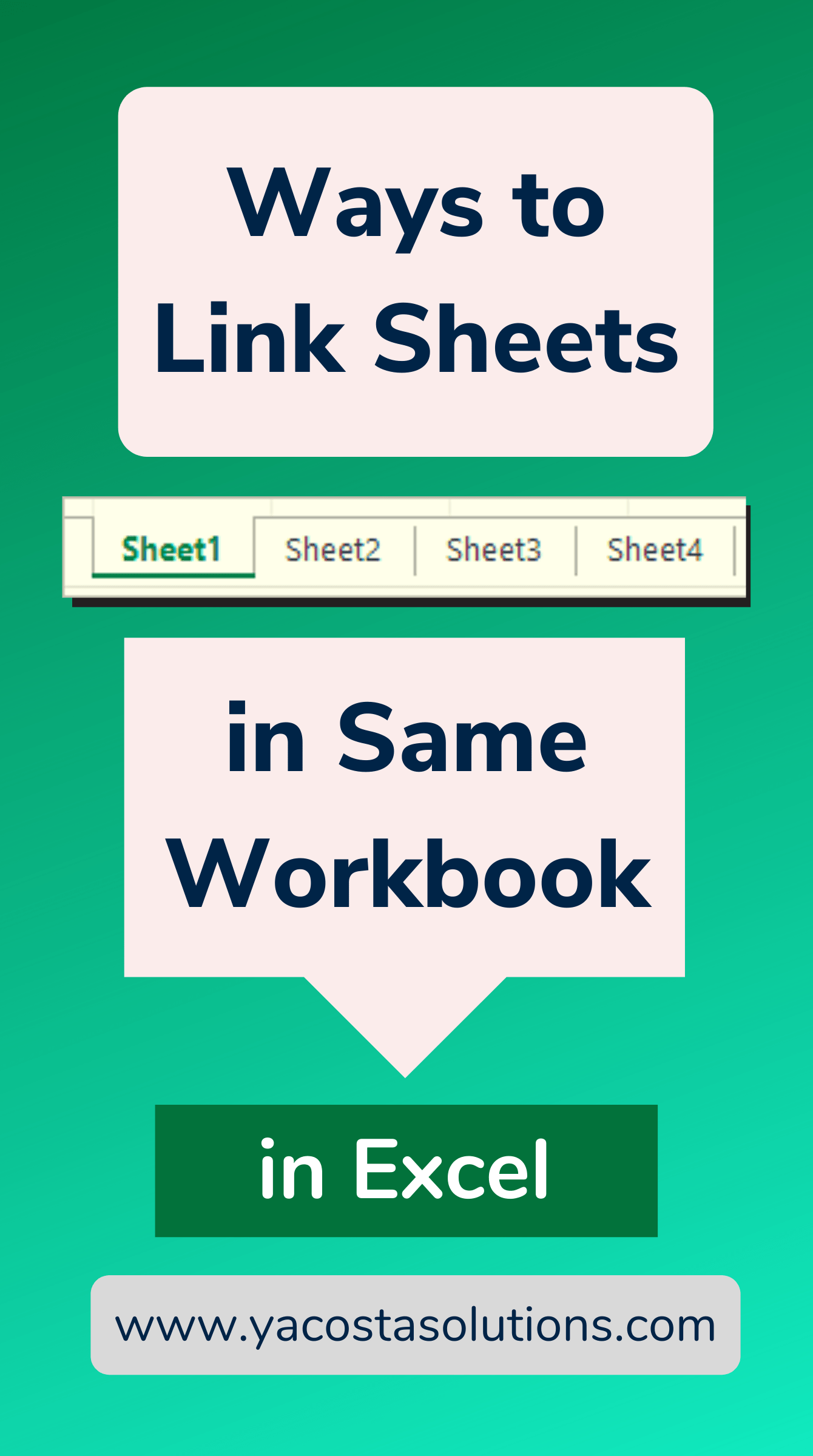 1340×2400 ways link sheets excel workbook video tutorial from yacostasolutions.com
 How To Link Data Between Excel Sheets Automatically was posted in February 9, 2026 at 9:40 pm. If you wanna have it as yours, please click the Pictures and you will go to click right mouse then Save Image As and Click Save and download the How To Link Data Between Excel Sheets Automatically Picture.. Don’t forget to share this picture with others via Facebook, Twitter, Pinterest or other social medias! we do hope you'll get inspired by ExcelKayra... Thanks again! If you have any DMCA issues on this post, please contact us!