
How To Use Solver In Excel For Optimization Problems
How To Use Solver In Excel For Optimization Problems - There are a lot of affordable templates out there, but it can be easy to feel like a lot of the best cost a amount of money, require best special design template. Making the best template format choice is way to your template success. And if at this time you are looking for information and ideas regarding the How To Use Solver In Excel For Optimization Problems then, you are in the perfect place. Get this How To Use Solver In Excel For Optimization Problems for free here. We hope this post How To Use Solver In Excel For Optimization Problems inspired you and help you what you are looking for.
Using Solver in Excel for Optimization Problems
Excel’s Solver add-in is a powerful tool for tackling optimization problems. Optimization involves finding the best possible solution (maximum or minimum) for a target variable, given a set of constraints and decision variables. Solver can be used in various fields like finance, operations management, engineering, and even personal finance planning. This guide will walk you through the process of using Solver, illustrating with examples to help you understand its capabilities.
Enabling Solver
Before using Solver, ensure it’s enabled in Excel. Here’s how: 1. **File > Options > Add-ins:** Go to the “File” tab, click “Options” at the bottom left, and then select “Add-ins” in the Excel Options dialog box. 2. **Manage Excel Add-ins:** In the “Manage” dropdown menu at the bottom, select “Excel Add-ins” and click “Go…”. 3. **Solver Add-in:** Check the box next to “Solver Add-in” in the Add-ins dialog box. 4. **Click OK:** Click “OK.” Solver should now appear in the “Data” tab under the “Analyze” group.
Understanding the Core Components of Solver
Solver works by adjusting specific cells in your spreadsheet to achieve a desired outcome, subject to defined limitations. To effectively use Solver, you need to understand its key components: * **Objective Cell:** This cell contains the formula that you want to maximize, minimize, or set to a specific value. It’s your target variable. * **Changing Variable Cells:** These are the cells that Solver can adjust to optimize the objective cell. These are your decision variables. * **Constraints:** These are the limitations or restrictions on the values of the changing variable cells. They ensure that the solution is realistic and feasible.
A Simple Example: Maximizing Profit
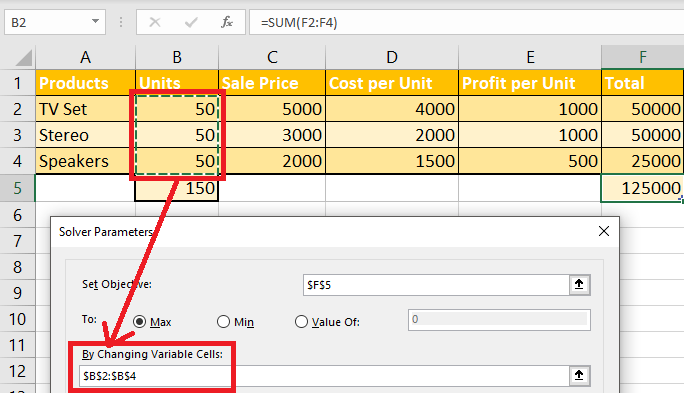
Let’s say you run a small business selling two products: A and B. You want to determine the optimal number of units to produce for each product to maximize your profit. **Setting up the Spreadsheet:** 1. **Product:** Enter “Product A” in cell A1 and “Product B” in cell A2. 2. **Units Produced:** Enter a starting value (e.g., 0) for Product A in cell B1 and for Product B in cell B2. These are your *changing variable cells*. 3. **Price per Unit:** Enter the price per unit for Product A in cell C1 (e.g., 50) and for Product B in cell C2 (e.g., 75). 4. **Cost per Unit:** Enter the cost per unit for Product A in cell D1 (e.g., 30) and for Product B in cell D2 (e.g., 40). 5. **Profit per Unit:** In cell E1, enter the formula `=C1-D1` to calculate the profit per unit for Product A. Copy this formula down to cell E2 for Product B. 6. **Total Profit:** In cell F1, enter the formula `=B1*E1` to calculate the total profit from Product A. In cell F2, enter the formula `=B2*E2` for Product B. 7. **Overall Profit (Objective Cell):** In cell F3, enter the formula `=SUM(F1:F2)` to calculate the overall profit. This is your *objective cell* – the cell you want to maximize. **Adding Constraints:** Assume you have constraints on the production capacity: * **Total Production Capacity:** You can produce a maximum of 100 units in total. Create a cell (e.g., A4 labeled “Total Capacity”) and set a constraint on `B1+B2` to be less than or equal to 100. * **Minimum Production for Product A:** You need to produce at least 20 units of Product A. Set a constraint on `B1` to be greater than or equal to 20. **Using Solver:** 1. **Open Solver:** Go to the “Data” tab and click “Solver.” 2. **Set Objective:** In the “Set Objective” field, select cell F3 (the overall profit). 3. **To:** Choose “Max” since you want to maximize profit. 4. **By Changing Variable Cells:** In the “By Changing Variable Cells” field, select cells B1:B2 (the units produced for each product). 5. **Subject to the Constraints:** Click “Add” to add the constraints: * **Cell Reference:** `B1+B2` * **Relationship:** `<=` * **Constraint:** `100` * Click "Add" again to add the second constraint. * **Cell Reference:** `B1` * **Relationship:** `>=` * **Constraint:** `20` * Click “OK” to return to the Solver Parameters dialog box. 6. **Make Variables Non-Negative:** Check the box labeled “Make Unconstrained Variables Non-Negative.” This ensures that you don’t get negative production values. 7. **Select a Solving Method:** Choose “GRG Nonlinear” as the solving method for this type of problem. For linear problems, “Simplex LP” is more efficient. 8. **Solve:** Click “Solve.” Solver will find the optimal solution and display a Solver Results dialog box. 9. **Keep Solver Solution:** Choose “Keep Solver Solution” to update the spreadsheet with the optimal values. 10. **Reports:** You can optionally generate sensitivity and limit reports for more in-depth analysis. 11. **Click OK:** Click “OK.” Solver will now display the optimal number of units to produce for each product in cells B1 and B2, maximizing your overall profit in cell F3, while respecting the specified constraints.
Advanced Tips and Considerations
* **Linear vs. Nonlinear Problems:** Solver offers different solving methods. “Simplex LP” is for linear problems (where the objective function and constraints are linear), which are generally faster to solve. “GRG Nonlinear” is for nonlinear problems. * **Integer Constraints:** If your changing variable cells need to be integers (e.g., you can’t produce a fraction of a product), add a constraint with the relationship “int” (integer). * **Binary Constraints:** If a changing variable can only be 0 or 1 (e.g., deciding whether to invest in a project), use the “bin” (binary) constraint. * **Feasibility and Boundedness:** Solver might not always find a solution. It could be because the problem is infeasible (no solution satisfies all constraints) or unbounded (the objective function can increase or decrease infinitely). Review your model carefully if Solver fails to find a solution. * **Solver Options:** The “Options” button in the Solver Parameters dialog box allows you to fine-tune Solver’s behavior, such as setting convergence tolerances and iteration limits. This can be helpful for complex problems. * **Sensitivity Analysis:** After solving, the sensitivity report provides valuable information about how changes in constraints affect the optimal solution.
Conclusion
Excel Solver is a versatile tool for solving a wide range of optimization problems. By understanding its core components, setting up your spreadsheet correctly, and carefully defining constraints, you can leverage Solver to find the best possible solutions for your specific needs. Remember to review your model and constraints thoroughly to ensure accuracy and feasibility, and experiment with different Solver options to achieve the best results.
 1280×720 advanced solver optimization excel maven from www.excelmaven.com
  720×540 excel solver linear optimization problems powerpoint from www.slideserve.com
  344×288 optimization modeling solver excel stephen nelson from stephenlnelson.com
  339×339 excel solver optimization problems from www.researchgate.net
  580×407 solve optimization models excel solver app from www.free-power-point-templates.com
 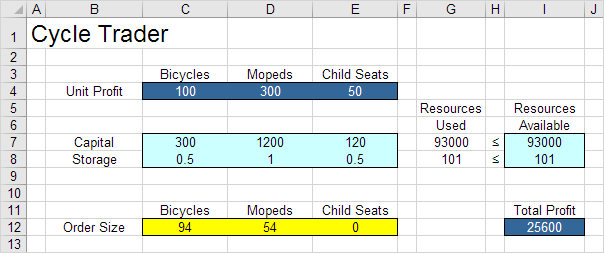 604×253 solver excel step step tutorial from www.excel-easy.com
  310×162 solver optimize solutions costing problems excel excel from www.exceltactics.com
  684×393 solver excel optimize solution from www.simplilearn.com
 How To Use Solver In Excel For Optimization Problems was posted in December 14, 2025 at 6:51 am. If you wanna have it as yours, please click the Pictures and you will go to click right mouse then Save Image As and Click Save and download the How To Use Solver In Excel For Optimization Problems Picture.. Don’t forget to share this picture with others via Facebook, Twitter, Pinterest or other social medias! we do hope you'll get inspired by ExcelKayra... Thanks again! If you have any DMCA issues on this post, please contact us!