
How To Use Sumifs In Excel With Multiple Conditions
How To Use Sumifs In Excel With Multiple Conditions - There are a lot of affordable templates out there, but it can be easy to feel like a lot of the best cost a amount of money, require best special design template. Making the best template format choice is way to your template success. And if at this time you are looking for information and ideas regarding the How To Use Sumifs In Excel With Multiple Conditions then, you are in the perfect place. Get this How To Use Sumifs In Excel With Multiple Conditions for free here. We hope this post How To Use Sumifs In Excel With Multiple Conditions inspired you and help you what you are looking for.
“`html
Understanding and Using SUMIFS in Excel with Multiple Criteria
The SUMIFS function in Excel is a powerful tool for summing values based on multiple criteria. It allows you to specify conditions that must be met for each corresponding value to be included in the final sum. This makes it significantly more versatile than the simpler SUMIF function, which only handles a single condition. This guide will delve into how to use SUMIFS effectively with multiple conditions, providing explanations, examples, and best practices.
Syntax of SUMIFS
The syntax of the SUMIFS function is as follows:
=SUMIFS(sum_range, criteria_range1, criteria1, [criteria_range2, criteria2], ...)Let’s break down each argument:
- sum_range: This is the range of cells that you want to sum. Only the cells in this range that meet *all* specified criteria will be included in the sum.
- criteria_range1: The first range to be evaluated by the first criteria.
- criteria1: The first criteria that determines which cells in criteria_range1 will be evaluated.
- [criteria_range2, criteria2], …: Optional. Additional ranges and their associated criteria. You can specify up to 127 range/criteria pairs.
Important Notes:
- All criteria_range arguments must have the same number of rows and columns as the sum_range.
- If a row in the sum_range meets all specified criteria, the corresponding value in that row is added to the sum.
- If no rows meet all the criteria, SUMIFS returns 0.
Practical Examples with Multiple Conditions
Let’s illustrate the use of SUMIFS with several practical examples. Imagine you have a sales dataset with the following columns:
- A: Sales Date
- B: Region (e.g., North, South, East, West)
- C: Product Category (e.g., Electronics, Clothing, Furniture)
- D: Salesperson
- E: Sales Amount
Example 1: Sum of Sales in the North Region for Electronics
To calculate the total sales amount for the ‘North’ region in the ‘Electronics’ category, you would use the following formula:
=SUMIFS(E:E, B:B, "North", C:C, "Electronics")Explanation:
- E:E is the sum_range – the Sales Amount column, which contains the values we want to sum.
- B:B is the first criteria_range – the Region column.
- “North” is the first criteria – we only want to include sales from the North region. Note the use of quotation marks for text criteria.
- C:C is the second criteria_range – the Product Category column.
- “Electronics” is the second criteria – we only want to include sales from the Electronics category.
This formula will sum only the sales amounts (column E) where the corresponding row in column B is “North” AND the corresponding row in column C is “Electronics”.
Example 2: Sum of Sales Greater Than $1000 Made by a Specific Salesperson
Let’s say you want to find the total sales amount for sales greater than $1000 made by a salesperson named “Alice”.
=SUMIFS(E:E, D:D, "Alice", E:E, ">1000")Explanation:
- E:E is the sum_range.
- D:D is the first criteria_range – the Salesperson column.
- “Alice” is the first criteria – we only want sales made by Alice.
- E:E is the second criteria_range – again, the Sales Amount column. Notice that the sum range can also be a criteria range.
- “>1000” is the second criteria – we only want sales amounts greater than $1000. Notice how we enclose the greater-than sign and the number in quotation marks when using numerical comparisons.
This formula sums the sales amounts only where the salesperson is “Alice” AND the sales amount is greater than $1000.
Example 3: Sum of Sales in a Specific Date Range
To calculate the total sales amount within a specific date range (e.g., between January 1, 2023, and January 31, 2023), you would use the following formula:
=SUMIFS(E:E, A:A, ">=2023-01-01", A:A, "<=2023-01-31")Explanation:
- E:E is the sum_range.
- A:A is the first criteria_range – the Sales Date column.
- ">=2023-01-01" is the first criteria – we only want sales on or after January 1, 2023. Dates are treated as text, so the comparison operators need to be inside the quotes. Using the YYYY-MM-DD format is generally the most reliable to avoid ambiguity.
- A:A is the second criteria_range – again, the Sales Date column.
- "<=2023-01-31" is the second criteria – we only want sales on or before January 31, 2023.
This formula sums the sales amounts only where the sales date is within the specified range. Excel will interpret "2023-01-01" and "2023-01-31" as dates if the date formatting in column A is correct. If you're having trouble with date comparisons, ensure your date column is properly formatted as a date within Excel.
Example 4: Using Cell References for Criteria
Instead of hardcoding the criteria directly in the formula, you can use cell references. This makes your formula more dynamic and easier to update. For instance, if you have the region in cell G1 and the product category in cell G2, the formula would be:
=SUMIFS(E:E, B:B, G1, C:C, G2)Now, if you change the values in cells G1 and G2 (e.g., change G1 to "South" and G2 to "Furniture"), the SUMIFS formula will automatically update the result.
Example 5: Using Wildcards
You can use wildcards within the criteria to match patterns. The asterisk (*) represents any sequence of characters, and the question mark (?) represents any single character. For example, to sum sales for all product categories starting with "Elec", you could use:
=SUMIFS(E:E, C:C, "Elec*")This will sum sales from categories like "Electronics", "Electrical Appliances", etc.
Tips and Best Practices for Using SUMIFS
- Consistent Data: Ensure your data is clean and consistent. Inconsistent spelling or formatting can lead to incorrect results. For example, "North" and "north" will be treated as different values unless you're using a case-insensitive comparison (which is generally more complex and requires helper columns).
- Data Types: Be mindful of data types. Make sure dates are formatted as dates, numbers are formatted as numbers, and text is formatted as text. Inconsistencies can lead to errors.
- Cell Formatting: Check the cell formatting of your sum_range. If the cells are formatted as text, you might get unexpected results. Ensure they are formatted as a number or currency.
- Using Tables: Consider using Excel tables for your data. Tables automatically adjust formulas as you add or remove rows, making your formulas more robust. Table formulas also use structured references (e.g., `Table1[Sales Amount]`) which are often easier to understand than column letters.
- Error Handling: If your SUMIFS formula isn't working as expected, double-check the following:
- Are the ranges the same size and shape?
- Are the criteria correctly specified (including quotation marks)?
- Are there any spelling errors in the criteria?
- Is the data in the correct format?
- Absolute and Relative References: Use absolute references ($) when you want a range to remain fixed, especially when dragging or copying the formula to other cells.
- Complex Criteria with Helper Columns: For very complex criteria that are difficult to express directly within the SUMIFS formula, consider using helper columns to create intermediate calculations or flags. You can then use SUMIFS with the helper column as a simpler criteria_range.
- Consider Alternatives: While SUMIFS is powerful, consider other functions like SUMPRODUCT or PivotTables for more complex analysis or for situations where SUMIFS becomes unwieldy. PivotTables, in particular, provide an interactive way to summarize and analyze data.
Troubleshooting Common SUMIFS Issues
- SUMIFS Returns 0: This usually means that no rows meet all of your criteria. Carefully review your data and criteria for any discrepancies.
- Incorrect Sum: This could be due to incorrect data types, inconsistent data, or errors in the formula itself. Double-check the formula syntax and the format of your data.
- #VALUE! Error: This often occurs when the sum_range and criteria_range arguments have different dimensions (i.e., different numbers of rows and columns).
- Dates Not Being Recognized: If you're using dates as criteria, make sure the date format in your data matches the date format used in the criteria. Also, ensure that the cells containing dates are formatted as dates and not as text.
By understanding the syntax and applying these best practices, you can effectively utilize the SUMIFS function in Excel to analyze and summarize your data based on multiple criteria, unlocking valuable insights and making informed decisions.
```
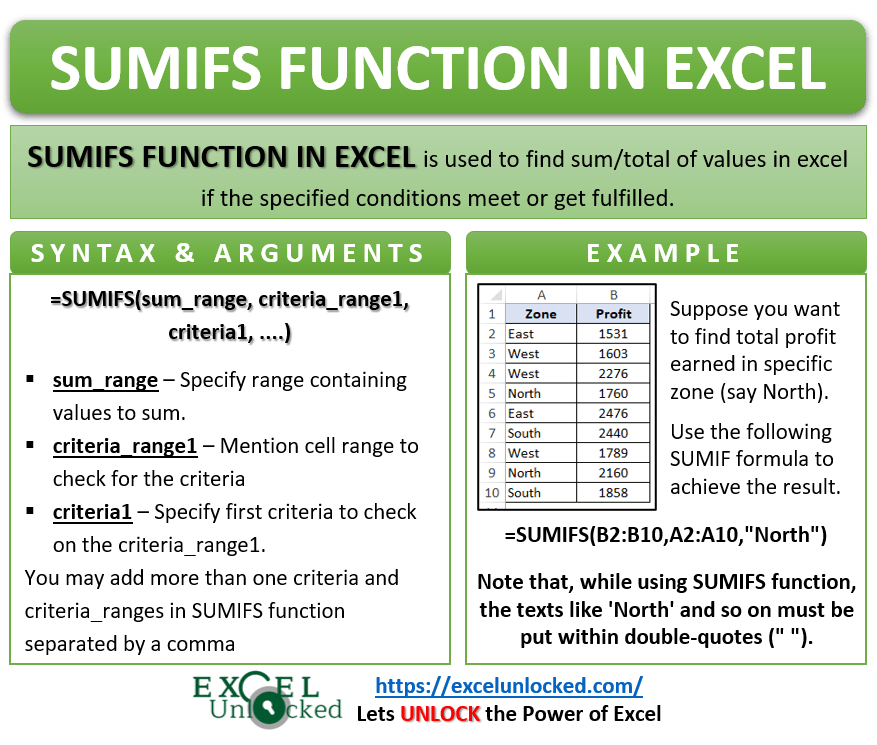 877×745 sumifs function excel multiple condition sum excel unlocked from excelunlocked.com
  644×390 sumifs function excel from www.exceltip.com
  753×476 sumifs multiple criteria sheetzoom learn excel from www.sheetzoom.com
 How To Use Sumifs In Excel With Multiple Conditions was posted in March 6, 2026 at 2:18 pm. If you wanna have it as yours, please click the Pictures and you will go to click right mouse then Save Image As and Click Save and download the How To Use Sumifs In Excel With Multiple Conditions Picture.. Don’t forget to share this picture with others via Facebook, Twitter, Pinterest or other social medias! we do hope you'll get inspired by ExcelKayra... Thanks again! If you have any DMCA issues on this post, please contact us!